
Patient Summary Screen

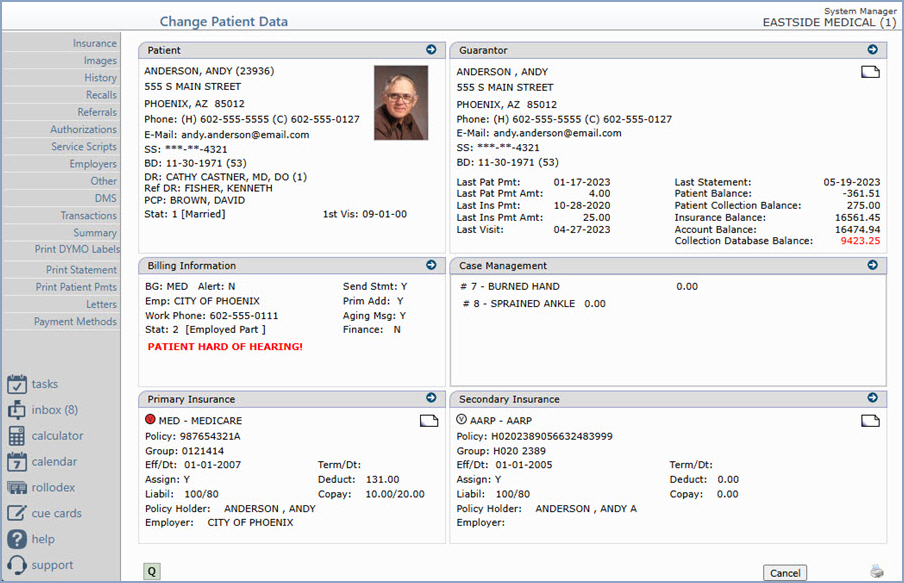
The Patient Summary screen consists of six sections. Click on a section to review or edit the data within that section.

The top two sections display the patient and guarantor information along with any saved image. In the Patient section, the patient's age is calculated and shown in parenthesis next to the birth date (BD) field and the account number is shown in parenthesis next to the patient's name. The Guarantor section, in addition to the basic demographic information, also displays the collection status; last patient and insurance payment date and amount; last statement date; last visit date (the date of the last procedure posted for that patient - which is different from the Last Visit field in the demographics section in the schedule, which pulls the date of the last posted E&M code on the entire account); and the patient, insurance and total account balance. It also displays the Collections balance from the Collections database. It updates in real time as charges, payments and adjustments are posted to the account in the Collections database.

The middle sections display billing and case management information. The Case Management section displays up to seven cases and the balance on each case. When you hover over the case description, the insurance carrier and the employer information for each case displays.

The bottom sections display the primary insurance information and the first of any effective subsequent insurance carriers. If the patient has multiple primary or secondary policies, an asterisk (*) appears next to the Primary Insurance or Secondary Insurance carrier name. If a patient has a tertiary policy, a (T) appears next to the Secondary Insurance carrier name. A CGM webVERIFY status icon will also display if your practice has a current CGM webVERIFY subscription. If you point to the icon, a ScreenTip will state the current status.

CGM webVERIFY Eligibility Status icons: (CGM webVERIFY clients only)

Verification Failed - Red

Verification Passed - Green

Verification Outdated - Grey

Verification Partial - Yellow

Never Verified - Clear - denotes a policy that has never been verified. If you point to the icon, a ScreenTip will state either, 'Never Verified' or 'Never Verified. Carrier does not contain a CGM webVERIFY Identifier.' You can click the Status icon to check eligibility for the carrier

The status icon reflects the status of the specific result being viewed, not the current eligibility status for the policy.
  An image icon appears in the upper-right corner of either section if an insurance card has been scanned and saved for the policy. You can click the icon to open the card image. When you hover over these sections, detailed insurance carrier information displays in a pop-up window. Click Insurance in the Action Column to view every policy entered and select the policy you want to view or edit. If there are no insurance policies entered on the patient's account, these sections are blank. You can add a new insurance carrier using the Insurance function in the Action Column.

You can change additional patient information using the functions available in the Action Column.  
 
After you make any changes and exit from a section, the patient account is immediately updated to reflect your change(s) and the updated Patient Summary screen refreshes.
