
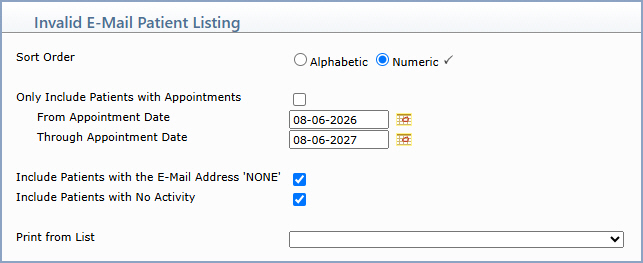
| Prompt | Response | Req | Len |
|---|---|---|---|
| Sort Order | Select Alphabetic to sort the report by patient name or Numeric to sort by patient account number. |  |
|
| Only Include Patients with Appointments | If you want to include only patients that have an appointment scheduled within a specific date range, select this check box and enter the date range in the fields below. | 1 | |
| From Appointment Date | Type the appointment date you want to begin with or click the calendar icon to select a date. | 10 | |
| Through Appointment Date | Type the appointment date you want to end with or click the calendar icon to select a date. | 10 | |
| Include Patients with the E-Mail Address 'NONE' | If you want to include patients whose e-mail address is entered as NONE, select this check box. | 1 | |
| Include Patients with No Activity | If you want to include patient accounts that have not had any activity, select this check box. | 1 | |
| Print from List | To print the report for the patients on a specific DMS list, type or select the list you want. |
Copyright and Trademark Notice. Copyright © 2019 CompuGroup Medical, Inc. CGM®, CompuGroup Medical® and the CGM logo are registered trademarks and CGM webPRACTICE™ and CGM webTOOLS™ are trademarks of CompuGroup Medical AG in the United States and/or other countries. Any rights not expressly granted herein are reserved.
