5010 Claim Exception Rules
With the 5010 Claim Exception Rules function, you can set up your
own 5010 electronic claim exceptions and enter custom exception text that
displays for charges matching the parameters of the rule. This function
resembles and functions similarly to the other 'rule tree' functions (for
example, Billing Profile Rules).
You can set up rules based on Electronic Form Number, Insurance
Carrier, Insurance Doctor, Insurance Form Type, Location,
Performing Doctor, or Plan Code.
5010 Claim Exception Rules Screen
When you access this function, the 5010 Claim Exception Rules screen
opens displaying the Claim Exception Rules 'tree' for the current database.
The tree is set up with the default Exception Text directly under
the Start drop-down menu. The default Exception Text applies to
all 5010 claims unless overridden by a rule set up below it.
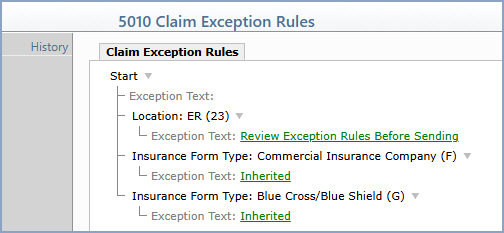
Each rule in the tree displays the criteria (for example, Location:
ER (23)) followed by a child Exception Text entry. The Exception
Text can be set explicitly for that rule, or it can be set to Inherited,
in which case the rule uses the Exception Text from its parent rule (or
the default Exception Text at the top of the tree if there is no parent
rule).
Adding a New Rule
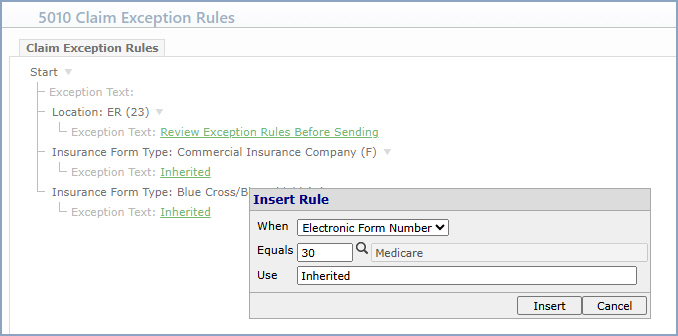
- Click Start on the rule tree, and then click New Rule
Below.
- In the When field, select the criteria the rule should match
against (Electronic Form Number, Insurance Carrier,
Insurance Doctor, Insurance Form Type, Location,
Performing Doctor, or Plan Code).
- In the Equals field, type or select the value the criteria
must equal for the rule to apply.
- Type the custom Exception Text that should display for charges
matching this rule, or leave it set to Inherited to use the
parent rule's Exception Text.
- Click Insert to add the rule to the tree, and then click
Save to save the changes.
Action Column Functions
History – Click to view a complete history of changes that have
been made to Claim Exception Rules. The Rule History window opens,
listing each version with the Version Date and the user who saved
it in the Saved By column. The current version is labeled Visible.
To view an earlier version, click the View link for that entry.

See Billing
Profile Rules for detailed
samples to set up additional rules.
Related Topics
- Billing Profile Rules
- 5010 Claim Hold Rules
- 5010 Submitter ID Rules
- 5010 Electronic Claim Loop and Segment Editor

