
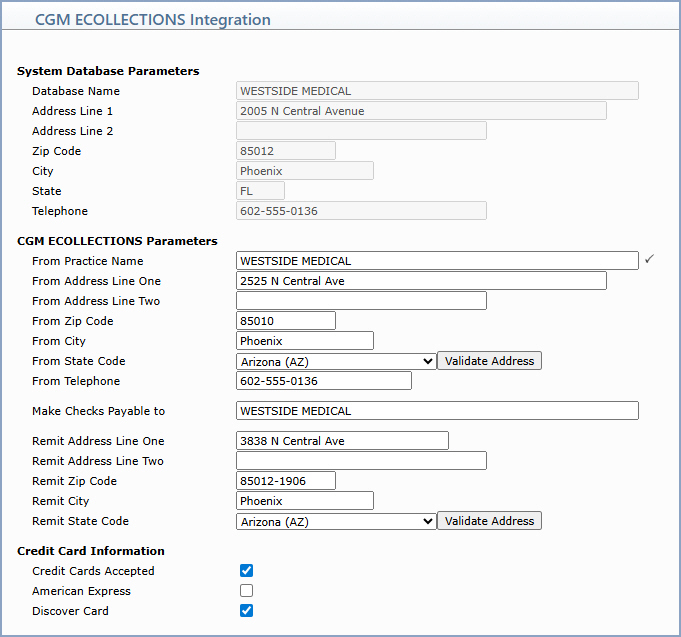
| Prompt | Response | Req | Len |
|---|---|---|---|
| System Database Parameters | |||
| Database Name | Displays the database name from the Change Database Parameters function. | ||
| Address Line 1 | Displays address line 1 from the Change Database Parameters function. | ||
| Address Line 2 | Displays address line 2 from the Change Database Parameters function. | ||
| Zip Code | Displays the zip code from the Change Database Parameters function. | ||
| City | Displays the city from the Change Database Parameters function. | ||
| State | Displays the state from the Change Database Parameters function. | ||
| Telephone | Displays the telephone number from the Change Database Parameters function. | ||
| CGM ECOLLECTIONS Parameters | |||
| From Practice Name | Type the practice name to display as the sender on CGM ECOLLECTIONS letters. This field defaults to the current database values stored in the Change Database Parameters function. | ||
| From Address Line One | Type the first line of the sender's address on CGM ECOLLECTIONS letters. This field defaults to the current database values stored in the Change Database Parameters function. | ||
| From Address Line Two | If applicable, type the second line of the sender's address on CGM ECOLLECTIONS letters. This field defaults to the current database values stored in the Change Database Parameters function. | ||
| From Zip Code | Type the zip code of the sender's address on CGM ECOLLECTIONS letters. This field defaults to the current database values stored in the Change Database Parameters function. | ||
| From City | Type the city of the sender's address on CGM ECOLLECTIONS letters. This field defaults to the current database values stored in the Change Database Parameters function. | ||
| From State Code | Select the state code of the sender's address on CGM ECOLLECTIONS letters. This field defaults to the current database values stored in the Change Database Parameters function. | ||
| From Telephone | Type the telephone number of the sender on CGM ECOLLECTIONS letters. This field defaults to the current database values stored in the Change Database Parameters function. | ||
| Make Checks Payable to | Type the name of the entity to which patients should make checks payable on CGM ECOLLECTIONS letters. | ||
| Remit Address Line One | Type the first line of the remit address on CGM ECOLLECTIONS letters. This field defaults to the current database values stored in the Change Database Parameters function. | ||
| Remit Address Line Two | If applicable, type the second line of the remit address on CGM ECOLLECTIONS letters. This field defaults to the current database values stored in the Change Database Parameters function. | ||
| Remit Zip Code | Type the zip code of the remit address on CGM ECOLLECTIONS letters. This field defaults to the current database values stored in the Change Database Parameters function. | ||
| Remit City | Type the city of the remit address on CGM ECOLLECTIONS letters. This field defaults to the current database values stored in the Change Database Parameters function. | ||
| Remit State Code | Select the state code of the remit address on CGM ECOLLECTIONS letters. This field defaults to the current database values stored in the Change Database Parameters function. | ||
| Credit Card Information | |||
| Credit Cards Accepted | If your practice accepts MasterCard and Visa, select this check box. This check box is selected by default. If you clear this check box, you cannot select the American Express or Discover Card check boxes. | 1 | |
| American Express | If your practice accepts American Express, select this check box. This check box is available only if the Credit Cards Accepted check box is selected. | 1 | |
| Discover Card | If your practice accepts Discover Card, select this check box. This check box is available only if the Credit Cards Accepted check box is selected. | 1 | |
Copyright and Trademark Notice. Copyright © 2019 CompuGroup Medical, Inc. CGM®, CompuGroup Medical® and the CGM logo are registered trademarks and CGM webPRACTICE™ and CGM webTOOLS™ are trademarks of CompuGroup Medical AG in the United States and/or other countries. Any rights not expressly granted herein are reserved.
