

| Prompt | Response | Req | Len |
|---|---|---|---|
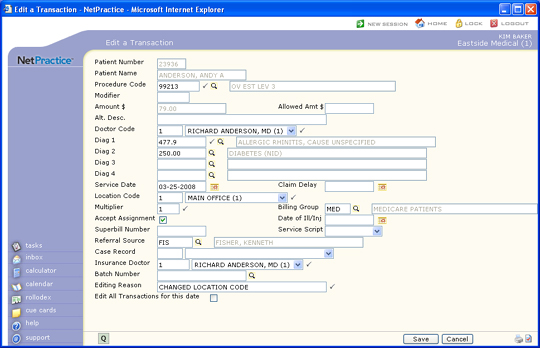
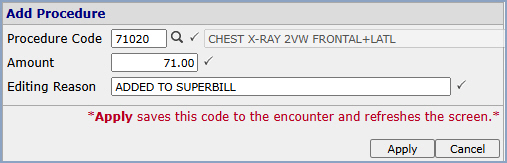
| Procedure Code | Type the code you want or click the magnifying glass to search the table. |  |
8 |
| Modifier | Type the modifier. | 6 | |
| Amount $ | Informational only. Displays the charge amount. | 15 | |
| Allowed Amt $ | Type the allowed amount. | 10 | |
| Alt. Desc. | Type an alternate description of the procedure code. | 40 | |
| Per Dr | Type the code you want or select from the Doctor list. Unavailable when editing charges in a closed billing period. | |
3 |
| Diag 1 | Type the code you want or click the magnifying glass to search the table. | |
10 |
| Diag 2 | Type the code you want or click the magnifying glass to search the table. | 10 | |
| Diag 3 | Type the code you want or click the magnifying glass to search the table. | 10 | |
| Diag 4 | Type the code you want or click the magnifying glass to search the table. | 10 | |
| Service Date | Type the date you want or click the calendar icon to select a date. | 10 | |
| Claim Hold | Type the date you want or click the calendar icon to select a date. | 10 | |
| Location Code | Type the code you want or select from the Location list. Unavailable when editing charges in a closed billing period. | |
3 |
| Department Code | Type the code you want or select from the Department list. | 3 | |
| Multiplier | Type a multiplier number greater than zero. | |
4 |
| Billing Group | Type the code you want or click the magnifying glass to search the table. Unavailable when editing charges in a closed billing period. | 3 | |
| Comment | Type any comment for the encounter. | ||
| Accept Assignment | If you want to modify the assignment status, select or clear this check box. | |
1 |
| Date of Ill/Inj | Type the date you want or click the calendar icon to select a date. | 10 | |
| Superbill Number | Type the superbill number. | 25 | |
| Service Script | Select a date from the Service Script list. | 10 | |
| Referral Source | Type the code you want or click the magnifying glass to search the table. | 6 | |
| Case Record | Type the code you want or select from the Case Record list. | 3 | |
| Ins Dr | Type the code you want or select from the Doctor list. Unavailable when editing charges in a closed billing period. | |
5 |
| Ins Dr Taxonomy | Select the taxonomy code from the list. Unavailable when editing charges in a closed billing period. | 40 | |
| Sup Dr | Type the supervising doctor code or click the magnifying glass to search the Doctor list. | 3 | |
| Batch Number | Type the batch number you want or click the magnifying glass to search the table. | 17 | |
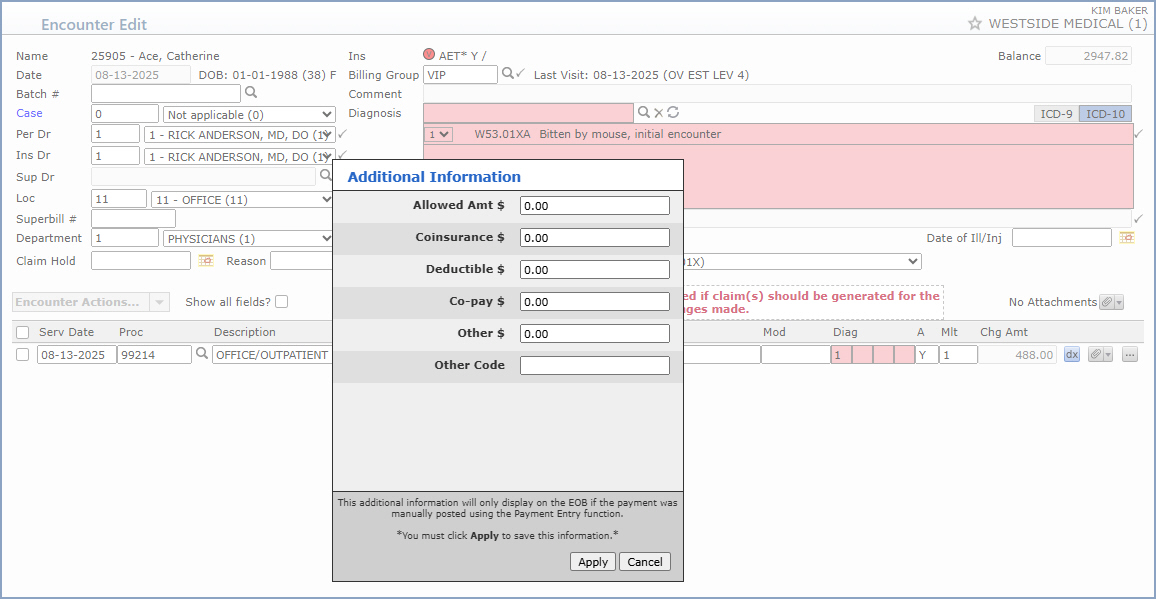
| Coinsurance $ | If this charge was not paid for because of coinsurance, enter the amount that went toward the coinsurance. | 10 | |
| Other $ | If a portion of this charge went toward another reason, enter that dollar amount. | 10 | |
| Deductible $ | If a portion or all of this line item went toward the deductible amount, enter the dollar amount that went to deductible. | 10 | |
| Other Code | Type the code you want or select from the Other Code list. | 3 | |
| Copay $ | If this charge was not paid for because of copay, enter the amount that went toward the copay. | 10 | |
| Editing Reason | Type the reason for the edit. The editing reason and edit date display when the patient's transaction history is reviewed in detail. | |
40 |
Copyright and Trademark Notice. Copyright © 2019 CompuGroup Medical, Inc. CGM®, CompuGroup Medical® and the CGM logo are registered trademarks and CGM webPRACTICE™ and CGM webTOOLS™ are trademarks of CompuGroup Medical AG in the United States and/or other countries. Any rights not expressly granted herein are reserved.
