
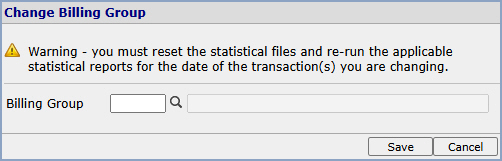
Billing Group — You can change the Billing Group tied to the selected transaction(s).
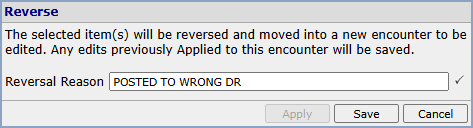
Reverse — Reverses the selected transaction(s). Reverse can be performed as long as the status is Denied, Co-Pay, or Filed and the claim has not been sent. The Reversal Reason field is required and will display in the Transaction History screen and the Transaction History Details screen in the Alt. Desc. field for the transactions that were reversed.

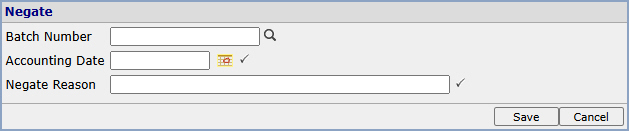
Negate — Backs out the selected transaction(s). The Negate Reason field is required and will display in the Transaction History screen, the Transaction History Details screen (in the Alt. Desc. field for the transactions that were negated) and on the Procedure Journal.
Deny — Records an insurance denial on the selected charge(s). This action is available only when there is an insurance balance.

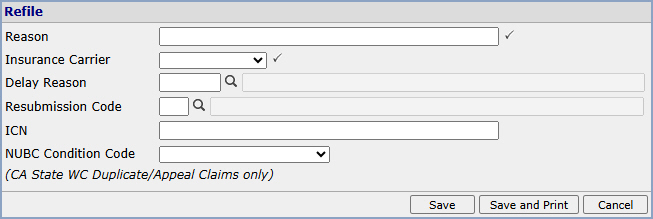
Refile — Refiles the selected charge(s) to the insurance carrier.
Demand — Files the selected charge(s) to insurance on demand.

File — Files the selected charge(s) to the insurance carrier.

Pend — Holds the selected charge(s) so they continue to show on insurance aging reports until further action is taken.


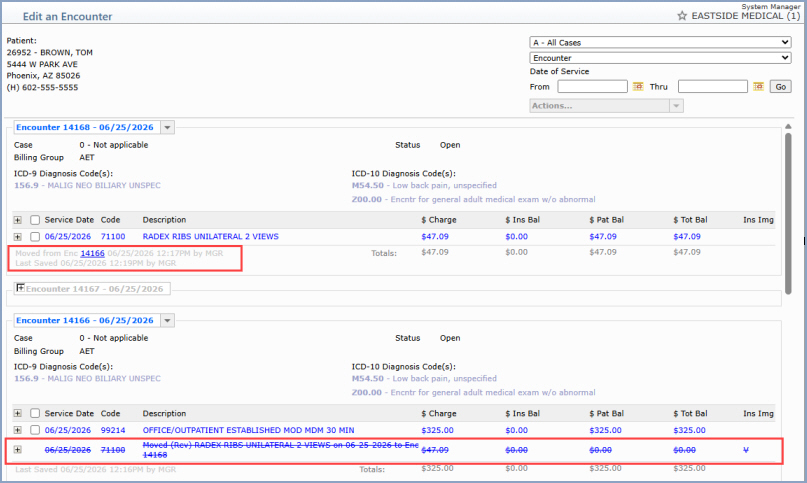
Move — Moves the selected procedure(s) to a new encounter, so you can edit Encounter-level data (the information in the top portion of the screen) for individual procedures without having to change every procedure in the original encounter. When procedures are Moved, they will be Negated or Reversed off of the original encounter and a new encounter will be created containing the procedures that were moved, where you can edit following the standard editing steps. If an insurance claim was already filed for the original encounter, refile it as needed so the claim reflects only the procedures that now remain on it. Note: if any of the line items you have selected have any payments or adjustments tied to them, the Move Action will not be performed for any of the line items you selected. The following message will display: “The selected item(s) will not be Moved because payments and/or adjustments have been applied to them.” To edit the Encounter level information, you must:
After selecting the Move Encounter Action, either the Negate or Reverse window will display, depending on the current status of the transactions. As long as a claim has not already been sent and/or the Billing Period has not been closed, a Reverse will be performed. Type the required data in the Reverse/Negate window and click Save.
The moved encounter will display in the Edit an Encounter screen, so you can make the necessary edits following the standard editing protocols. After you have applied and saved your edits, Encounter View will display the original encounter and the two new encounters that were created when the procedure was moved. In the example below, the Show/Hide All Rev/Neg/Moved was currently toggled to show all encounters, so the other encounters related to this Move are visible.
Edit — You can Edit the encounter.
Clone — Makes a copy of the encounter so you can post the same charges with only a few modifications and save it as a new encounter (for example, to bill the same surgical charges for an assistant surgeon by adding the assistant surgeon modifier). For example: say you posted an Encounter that contained many procedure line items for surgical charges and you need to post those same charges for the assistant surgeon. Instead of having to perform the time consuming task of re-entering all of surgical charges to add the assistant surgeon modifier, now you can make a clone of the surgical charges Encounter, simply add the modifier and save it as a new Encounter.
Note: When you have multiple Dates
of Service within an encounter and use the Demand, File,
or Refile action, if the selected insurance carrier is not the
effective carrier for one or more Dates of Service, a message notifies
you of the appropriate action to take.
Copyright and Trademark Notice. Copyright © 2019 CompuGroup Medical, Inc. CGM®, CompuGroup Medical® and the CGM logo are registered trademarks and CGM webPRACTICE™ and CGM webTOOLS™ are trademarks of CompuGroup Medical AG in the United States and/or other countries. Any rights not expressly granted herein are reserved.
