Selecting Multiple Encounters - Actions Available
The Actions drop-down becomes active when at least one box
is selected; from it, choose File Selected, Refile Selected,
or Edit Selected.
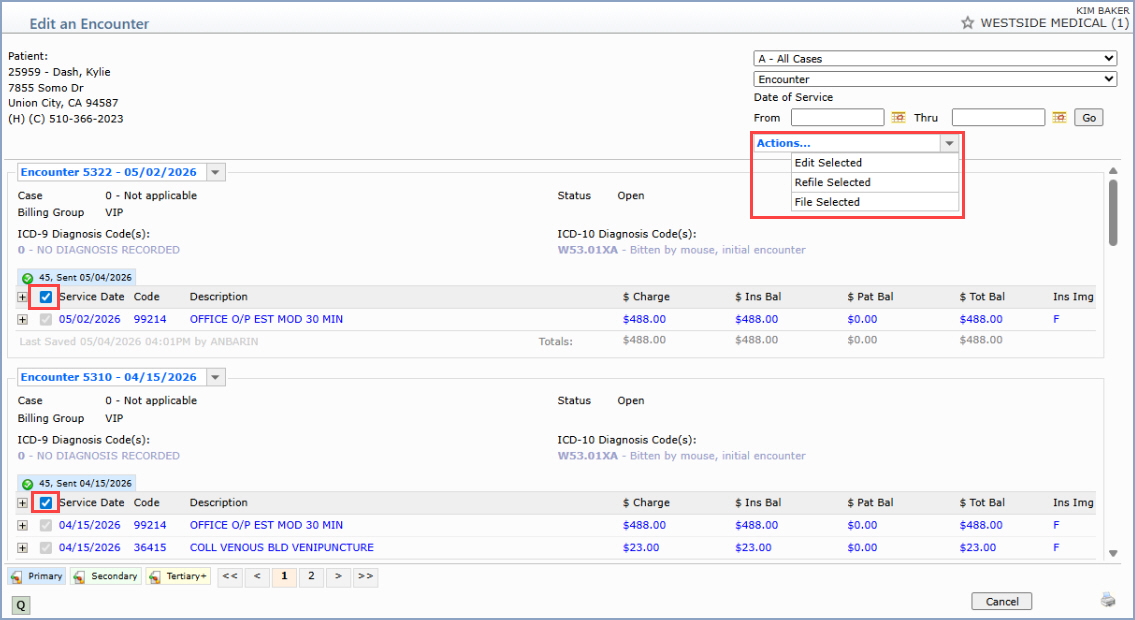
- File Selected — The standard File dialog displays
so you can select the Insurance Carrier to file the encounter(s) or
charge(s) to. A success message displays when the items are filed.
If any encounters or line items cannot be filed, a dialog lists them;
file those separately to obtain the specific reason they could not
be mass-filed.

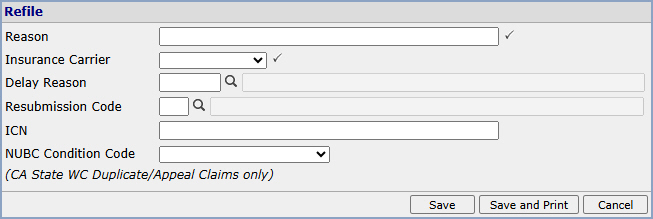
- Refile Selected — The standard Refile dialog displays
so you can select the parameters for the items to refile. A success
message displays when the items are refiled. If any cannot be refiled,
a dialog lists them for separate handling.
- Edit Selected — Behavior depends on the selection scope:
- If you select one encounter only, the standard Edit
an Encounter screen opens.
- If you select multiple encounters, the Edit Encounters
dialog opens so you can edit the encounter-level information for
the selected encounters. The Edit Reason field is required.
After saving, a message lists the encounters that were successfully
edited; if any could not be edited, a message indicates that.
- If you select an individual charge or multiple charges within
the same encounter, Edit Selected is not available — click
the encounter directly to access the Edit an Encounter screen.
- If you select multiple charges across multiple encounters,
Edit Selected is not available; charge-line-level information
cannot currently be edited across multiple encounters.
Notes:
- If you attempt to edit encounters from within a closed billing
period, a message stating the billing period is closed and statistical
files should be reset displays.
- If you attempt to edit charges where some or all are within a closed
billing period, the Billing Group, Per Dr, Ins Dr,
Ins Dr Taxonomy, and Location fields are unavailable
to be edited.
- If the same encounter is being edited by two users simultaneously,
the last record changed and saved is the one that is retained.
- You can review all edited transactions on the Print Edited Transaction
Journal (Reports › Transaction Journals). The journal prints
by Accounting Date, not by the date the edits were made.

