Transmission File Management
With the Transmission File Management function, you can easily manage all the various types of 5010 electronic claim files. You can see at a glance the total number of claims and the amounts that were sent each day. It is designed to assist in the daily process of balancing the 5010 claim files between CGM webPRACTICE and eMEDIX, and any claims sent directly to carriers and/or clearinghouses.
NOTE: This function is available for 5010 electronic claims only.
The summary screen lists the total number of claims and the dollar amount sent each date, starting with the most recent. It lists the claims by the Date Sent to make it easier to match up to the Payer Type Summary totals provided by eMEDIX Online. If the claims have not been sent yet, Untransmitted displays in the Date Sent column.
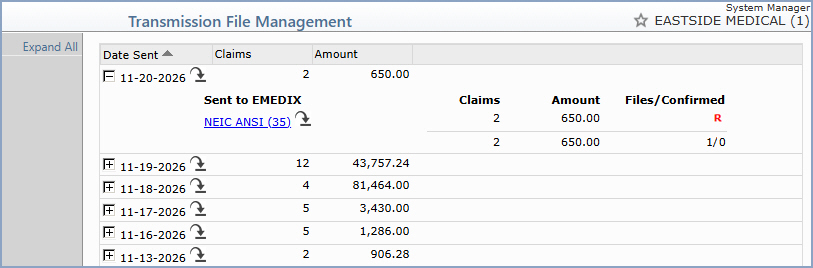
Click the Expand icon next to a date to display a detailed breakdown for that date. For each way the claims were sent (for example, Sent to EMEDIX), the breakdown lists each electronic form with its number of Claims, the Amount and the Files/Confirmed status, followed by a total line. Click the Collapse icon to collapse the detail and display the summary data again.
The Files/Confirmed column on the total line shows the number of files sent, followed by the number of those files that have been confirmed (for example, 1/0 means one file was sent and none are confirmed). When eMEDIX returns a TACK report for a claim file, the Confirmation status is set automatically. If a file was rejected, a bold red R displays for that electronic form so it stands out.
Action Column Functions
- Expand All / Collapse All - Expands or collapses the detailed breakdown for every date listed on the screen in one click. The view you select stays in effect until you click Cancel to exit the function.
Update Confirmation Report Inquiry
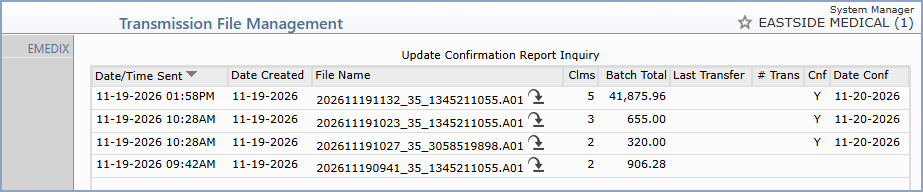
Click the electronic form link (for example, NEIC ANSI (35)) in the detail to display the Update Confirmation Report Inquiry screen, which lists all the files for that electronic form. You can mark files as confirmed and then click Cancel to return directly to the Transmission File Management screen.
Downloading Files
Use the Download icon to save the 837 electronic claim files after they have been sent, for example to provide them to an alliance partner for reporting purposes. You can download the files in any of these ways:
- By date - Click the Download icon next to the Date Sent to download all the electronic 837 claim files sent on that date to your workstation.
- By electronic form - Expand the date, then click the Download icon next to the electronic form link to download all the electronic 837 claim files sent for that form to your workstation.
- Individually - Click the electronic form link to display the files in the Update Confirmation Report Inquiry screen, then click the Download icon next to the file name to download that file to your workstation.
You are prompted to save each file individually as it is downloaded.