
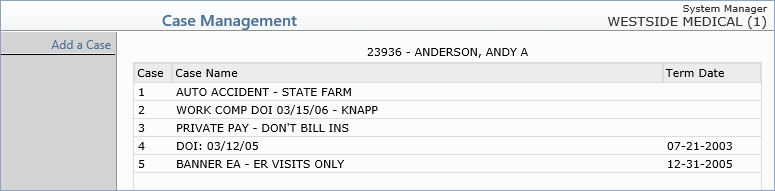
| Prompt | Response | Req | Len |
|---|---|---|---|
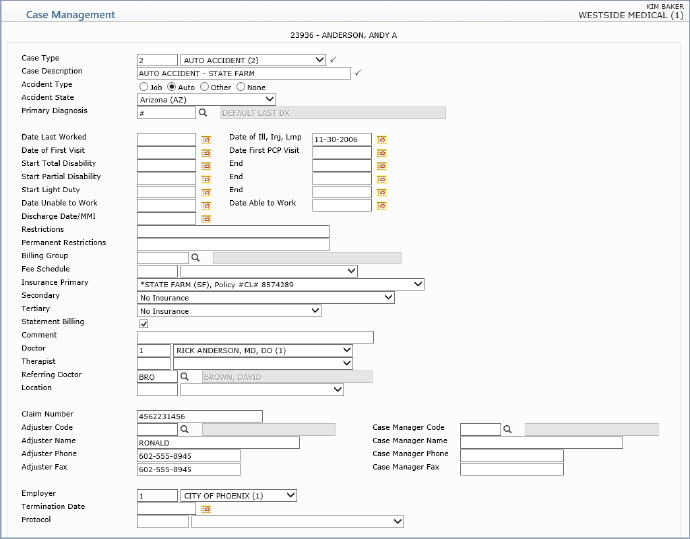
| Case Type | Type the code you want or select from the Case Type list. |  |
5 |
| Case Description | Type a description of the case. | |
45 |
| Accident Type | Select the applicable Accident Type option or select None if this case is not related to an accident. | 1 | |
| Accident State | If you selected Auto for the Accident Type, select the state where the accident occurred from the Accident State list. This field is required when Auto is selected as the Accident Type. | 3 | |
| Primary Diagnosis | Type the code you want or click the magnifying glass to search the table. | 10 | |
| Date Last Worked | Type the date the patient last worked or click the calendar icon to select a date. A future date is not allowed. | 10 | |
| Date of Ill, Inj, Lmp | Type the date of illness, injury, or last menstrual period or click the calendar icon to select a date. A future date is not allowed. | 10 | |
| Date of First Visit | Type the date of the patient's first visit to your practice for this case or click the calendar icon to select a date. | 10 | |
| Date First PCP Visit | Type the date of the patients first Primary Care Physician (PCP) visit for this case or click the calendar icon to select a date. | 10 | |
| Start Total Disability / End | Type the date the patient started total disability, and the date total disability ended, in the corresponding boxes, or click the calendar icon to select a date. | 10 / 10 | |
| Start Partial Disability / End | Type the date the patient started partial disability, and the date partial disability ended, in the corresponding boxes, or click the calendar icon to select a date. | 10 / 10 | |
| Start Light Duty / End | Type the date the patient started light duty, and the date light duty ended, in the corresponding boxes, or click the calendar icon to select a date. | 10 / 10 | |
| Date Unable to Work | Type the date the patient became unable to work or click the calendar icon to select a date. | 10 | |
| Date Able to Work | Type the date the patient became able to work or click the calendar icon to select a date. | 10 | |
| Discharge Date/MMI | Type the discharge date or the date of Maximum Medical Improvement (MMI) or click the calendar icon to select a date. | 10 | |
| Restrictions | Type any applicable restrictions for this case. | 40 | |
| Permanent Restrictions | Type any applicable permanent restrictions for this case. | 40 | |
| Billing Group | Type the code you want or click the magnifying glass to search the table. (When you enter charges in the Procedure Entry Function, the billing group for the selected case will automatically be stored on each of the charges tied to the case.) | 8 | |
| Fee Schedule | The Fee Schedule is used to provide Alternate Fees and Allowable amounts whenever this Case is selected for a patient. Type the code you want or select from the Fee Schedule list. | 5 | |
| Insurance Primary | Select the primary insurance carrier
that applies to this case from the Primary Carrier list. All primary
carriers stored on the account will display along with the policy
number. If a carrier has been terminated, the termination date
displays next to the policy number. You should select a primary insurance if the charges assigned to this case should be billed to a primary insurance carrier different from the regular primary insurance stored on the patient account and the policy has the Special Billing check box selected in the Insurance Policy Information screen. You should leave this field blank if the charges assigned to this case should be billed to the regular primary insurance on the account or select No Insurance if the charges should not be billed to a primary insurance carrier at all. |
5 | |
| Secondary | Select the secondary insurance carrier
that applies to this case from the Secondary Carrier list. All
secondary carriers stored on the account will display along with
the policy number. If a carrier has been terminated, the termination
date displays next to the policy number. You should select a secondary insurance if the charges assigned to this case should be billed to a secondary insurance carrier different from the regular secondary insurance stored on the patient account and the policy has the 'Special Billing' check box selected in the Insurance Policy Information screen. You should leave this field blank if the charges assigned to this case should be billed to the regular secondary insurance on the account or select No Insurance if the charges should not be billed to a secondary insurance carrier at all. |
5 | |
| Tertiary | Select the tertiary insurance carrier
that applies to this case from the Tertiary list. All tertiary
carriers stored on the account will display along with the policy
number. If a carrier has been terminated, the termination date
displays next to the policy number. You should select a tertiary insurance if the charges assigned to this case should be billed to a tertiary insurance carrier different from the regular tertiary insurance stored on the patient account and the policy has the 'Special Billing' check box selected in the Insurance Policy Information screen. You should leave this field blank if the charges assigned to this case should be billed to the regular tertiary insurance on the account or select No Insurance if the charges should not be billed to a tertiary insurance carrier at all. |
5 | |
| Statement Billing | If you want transactions for this case to be included on the patients statement, select this check box. | 1 | |
| Comment | Type any applicable comment for this case. This field is strictly informational and does not populate into any other function or print anywhere. | 50 | |
| Doctor | Type the code you want or select from the Doctor list. | 3 | |
| Therapist | Type the code you want or select from the Therapist list. | 3 | |
| Referring Doctor | Type the code you want or click the magnifying glass to search the table. | 5 | |
| Location | If the patient is always seen at a specific location for this case, type the code you want or select from the Location list. | 5 | |
| Claim Number | Type the claim number for this case. For electronic workers' compensation claims only, this claim number will override the Policy Number stored in the Insurance Policy Information for the applicable insurance policy. |
25 | |
| Adjuster Code | Type the code for the adjuster. | 5 | |
| Case Manager Code | Type the code for the case manager. | 5 | |
| Adjuster Name | The adjuster's full name (last, suffix, first, and middle name) automatically populates from the Case Manager/Adjuster Code Table when you enter the Adjuster Code. | 130 | |
| Case Manager Name | The case manager's full name (last, suffix, first, and middle name) automatically populates from the Case Manager/Adjuster Code Table when you enter the Case Manager Code. | 130 | |
| Adjuster Phone | Type the phone number for the adjuster. | 20 | |
| Case Manager Phone | Type the phone number for the case manager. | 20 | |
| Adjuster Fax | Type the fax number for the adjuster. | 20 | |
| Case Manager Fax | Type the fax number for the case manager. | 20 | |
| Employer | Type the employer code you want or select from the Employer list. This list pulls from the employer information stored in the patient's Employers DMS record. | 5 | |
| Termination Date | Type the termination date of this case or click the calendar icon to select a date. | 10 | |
| Protocol | Type the code you want or select from the Protocol list. For additional information see the Protocol Table functions under the Tables menu. | 8 |
Copyright and Trademark Notice. Copyright © 2019 CompuGroup Medical, Inc. CGM®, CompuGroup Medical® and the CGM logo are registered trademarks and CGM webPRACTICE™ and CGM webTOOLS™ are trademarks of CompuGroup Medical AG in the United States and/or other countries. Any rights not expressly granted herein are reserved.
