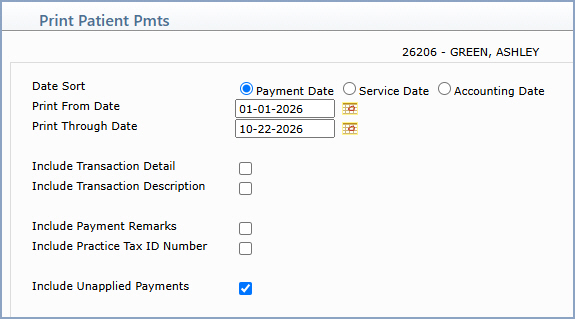
| Prompt | Response | Req | Len |
|---|---|---|---|
| Date Sort | Select whether to sort the report by Payment Date, Service Date or Accounting Date. Payment Date is selected by default. | ||
| Print From Date | Type the first payment date to include on the report or click the calendar icon to select a date. | 10 | |
| Print Through Date | Type the last payment date to include on the report or click the calendar icon to select a date. | 10 | |
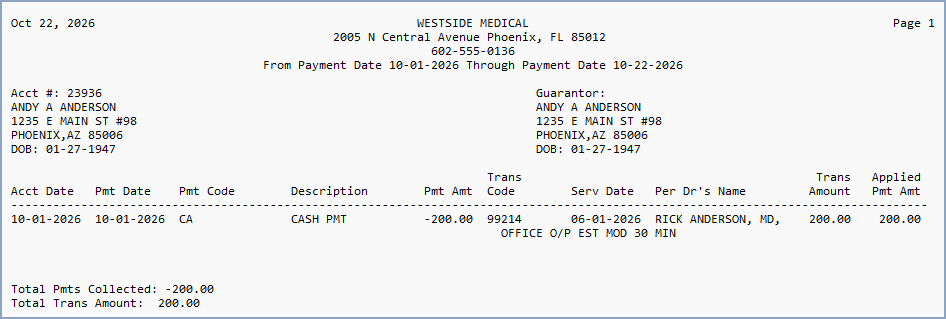
| Include Transaction Detail | Select this check box to include transaction detail (transaction code, service date, performing doctor's name, transaction amount and applied payment amount) for each payment. | ||
| Include Transaction Description | Select this check box to include the transaction description below each payment. | ||
| Include Payment Remarks | Select this check box to include payment remarks on the report. | ||
| Include Practice Tax ID Number | Select this check box to print the practice's tax ID number on the report. | ||
| Include Unapplied Payments | Select this check box to include payments that have not been applied to charges. This check box is selected by default. |
Copyright and Trademark Notice. Copyright © 2019 CompuGroup Medical, Inc. CGM®, CompuGroup Medical® and the CGM logo are registered trademarks and CGM webPRACTICE™ and CGM webTOOLS™ are trademarks of CompuGroup Medical AG in the United States and/or other countries. Any rights not expressly granted herein are reserved.