
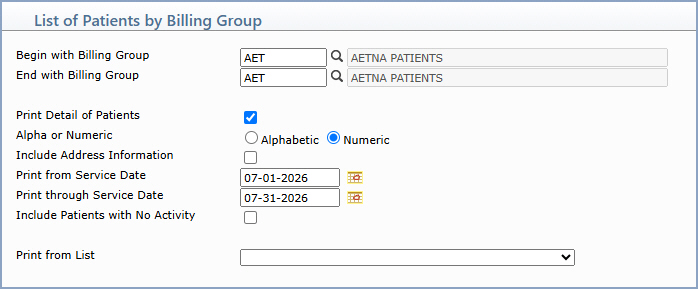
| Prompt | Response | Req | Len |
|---|---|---|---|
| Begin with Billing Group | Type the code you want to begin with or leave the field blank to start with the first code in the table. | 7 | |
| End with Billing Group | Type the code you want to end with or leave the field blank to end with the last code in the table. | 7 | |
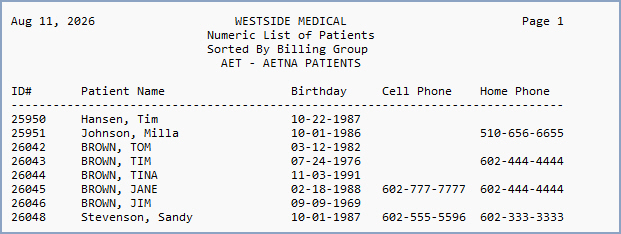
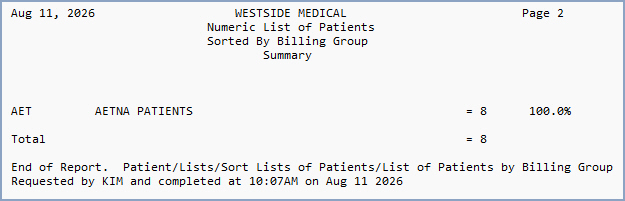
| Print Detail of Patients | To print the individual patient information (Account Number, Patient Name, Birthday, Cell Phone and Home Phone) select this check box. If you do not select to print the detail of patients, only the summary of the total number of patients per code and the percentage of total patients per code will print. | 1 | |
| Alpha or Numeric | If you selected to print detail of patients, select the sorting option you want. | 1 | |
| Include Address Information | If you selected to print detail of patients and you want to print the patient's address information, select this check box. | 1 | |
| Print from Service Date | Type the service date you want to begin with or click the calendar icon to select a date. Accounts with charges posted within the date range are included. This field defaults to one year prior to the current day. | 10 | |
| Print through Service Date | Type the service date you want to end with or click the calendar icon to select a date. | 10 | |
| Include Patients with No Activity | If you want to include patient accounts that have not had any activity, select this check box. | 1 | |
| Print from List | If you want to print this report based off of a DMS List, select the list from the DMS Lists list box. | 20 |
Copyright and Trademark Notice. Copyright © 2019 CompuGroup Medical, Inc. CGM®, CompuGroup Medical® and the CGM logo are registered trademarks and CGM webPRACTICE™ and CGM webTOOLS™ are trademarks of CompuGroup Medical AG in the United States and/or other countries. Any rights not expressly granted herein are reserved.
