Patient Registration for Family Billing or Linking Billing
Family Billing Type
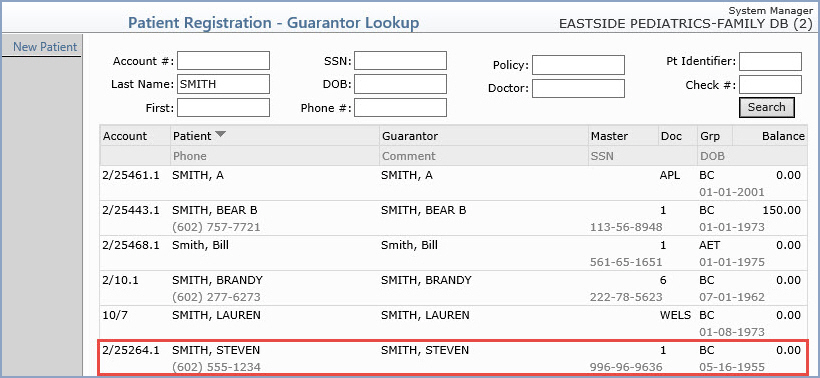
Upon accessing this function, the Patient Registration - Guarantor Lookup screen displays. Search the database for the patient. If the patient is not already in the system, you can click New Patient in the Action Column to add the patient, or you can attach the new patient to an existing account. To do this, click anywhere in the row containing the existing patient's information. In this example, Steven Smith's wife Sarah will be attached to Steven's existing account.
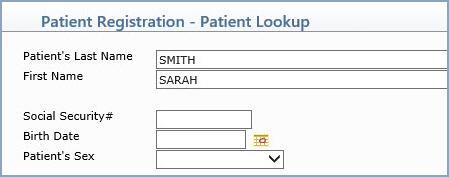
Upon selecting the existing patient, the Patient Registration - Patient Lookup screen displays so you can enter the patient's name. If you type only the patient's last name (Smith), a screen displays with a list of all of the family members that are attached to the existing (master) account so you can see who is already on the account. From that screen, you can click New Patient in the Action Column to add a new patient to the master account.
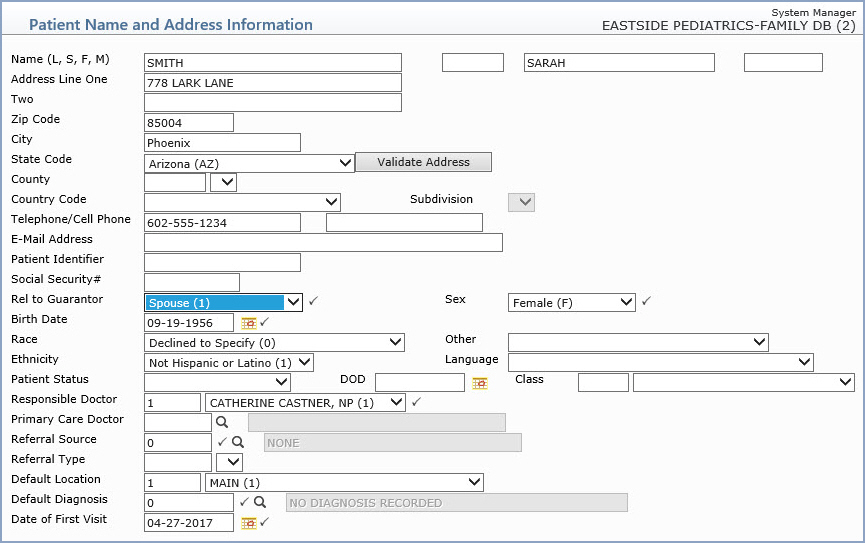
If you type the last name and first name of a patient that doesn't exist in this family, the normal Patient Registration function resumes, with all of Steve's (the existing patient's/the master account's) information already populated. On the Patient Name and Address Information screen, you must select the correct Rel to Guarantor so that the accounts can be properly attached.
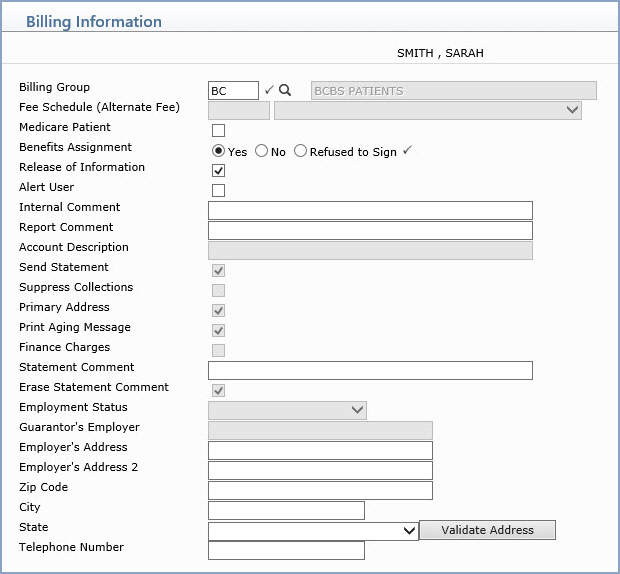
Next, the Billing Information screen displays containing the information already saved for the Master account (Steven). You can edit any necessary fields or click Save to proceed with registering the new patient account.
When the insurance policy information screen displays, you can either select the existing patient's policy (if Steven's insurance is Sarah's primary insurance) or you can click Add a Policy in the Action Column if Sarah has her own primary policy. If Sarah has her own secondary policy, select Steven's insurance first to set it up as primary, and then you can add Sarah's secondary policy.

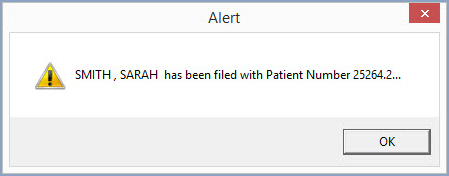
Steven's account number is 25264.1, so Sarah's information is saved under account number 25264.2 and Sarah's account is now attached to Steven's.
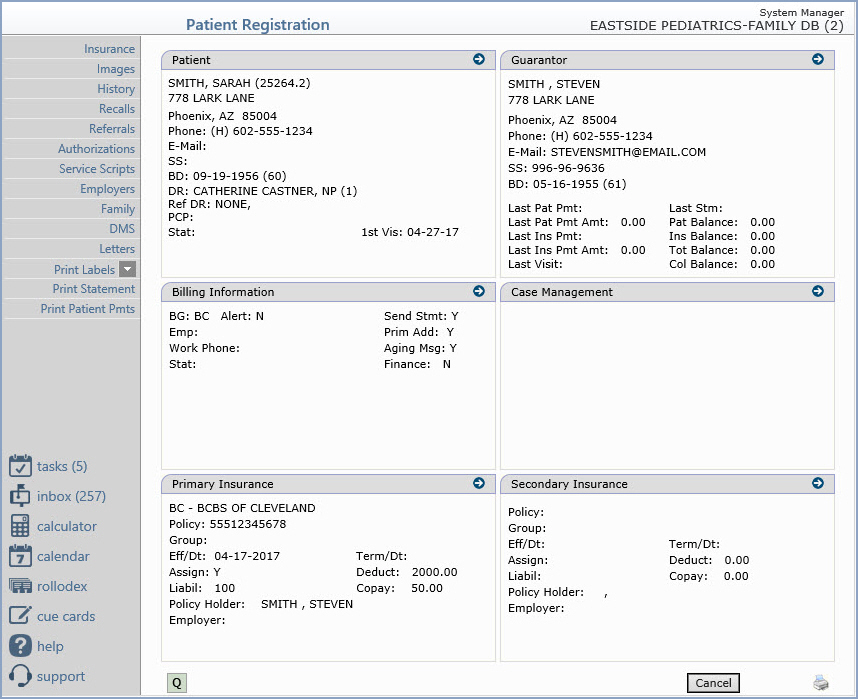
The Patient Registration screen then displays the Patient Summary Screen for the new patient. From this screen you can click Family in the Action Column to modify the Family Grouping.
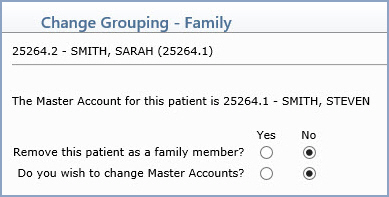
The Change Grouping - Family screen displays. For more information on this function see the Patient Summary Screen in Change Patient Data.
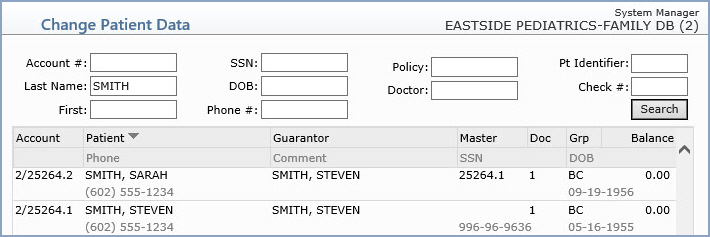
Now, when you look up 'SMITH', you can see both patients with different account numbers. In the Master column for Sarah's account, it's indicated that she is attached to Master Account number 25264.1. The Master column is blank for Steven as he is the Master Account.
You can also attach new accounts to existing accounts with 'Quick Reg' in Enter Patient Appointments (if your practice is set to Register in the Scheduling System Integration). And, you can also attach new accounts and existing accounts using the Family and Family Review functions from the Patient Summary screen in Change Patient Data.
Linking Billing Type
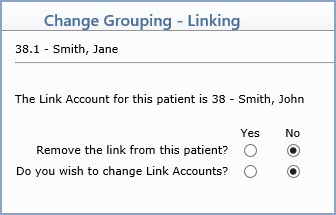
The only difference between the Linking Billing Type and the Patient Billing Type in Patient Registration is in the last screen where you can modify the linking of the accounts. When you click Family in the Action Column from the Patient Registration Patient Summary screen, the Change Grouping - Linking screen displays. For more information on this function see the Patient Summary Screen in Change Patient Data.