
Medicaid Roll Up Integration

With the Medicaid Roll Up Integration function, you can complete the roll up settings that apply to Medicaid claims for a specific Roll Up Group Code. The settings stored here determine how charges are rolled up onto Medicaid claims when the claim's Doctor, Location, and Insurance Carrier codes match a Roll Up Group Code defined in Maintain Roll Up Groups.

NOTE: Before completing this function, you must first create a Roll Up Group Code using the Maintain Roll Up Group Codes function and define the associated Doctor, Carrier, and Location codes using the Maintain Roll Up Groups function.

Selecting a Roll Up Group Code

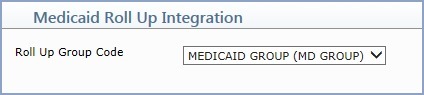
Type or select the Roll Up Group Code you want from the Roll Up Group Code list.


Selecting an Effective Date

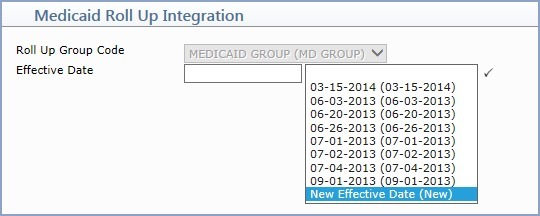
An Effective Date is required for the Roll Up Group Code. You can select an existing date from the Effective Date list, or create a new effective date by selecting New Effective Date.


If you selected New Effective Date, the screen refreshes and the Effective Date field is displayed. Type or select the date you want using the calendar icon.

Medicaid Roll Up Integration Setup Screen

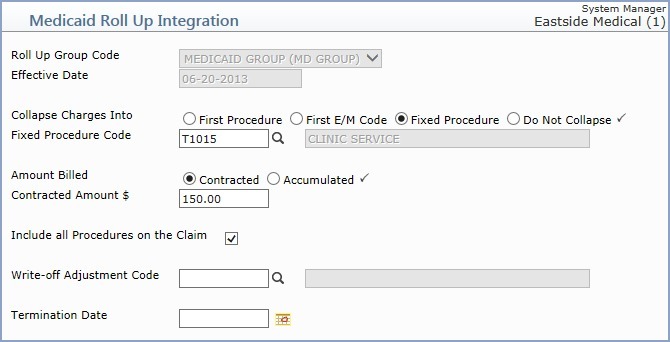
The detailed Medicaid Roll Up Integration setup screen for the selected Effective Date and Roll Up Group Code is displayed. Complete the roll up setting fields based on the requirements of your practice.


Data Field Information
Prompt Response Req
Effective Date This field is for display purposes only. This date controls when the selected Integration settings will become effective for the selected Roll Up Group Code.  
Roll Up Group Code This field is for display purposes only. The selected Integration settings will only be applied to claims that meet the requirements defined for this Roll Up Group Code in Maintain Roll Up Groups.  
Collapse Charges Into Select one of the following options:
  • First Procedure – select this option if you want all the charges rolled up into the first procedure code on the claim.
  • First E/M Code – select this option if you want all the charges rolled up into the first E/M procedure code on the claim.
  • Fixed Procedure – select this option if you want all the charges rolled up into a Fixed Procedure code, which you will select in the Fixed Procedure Code field below.
  • Do Not Collapse – select this option if you do not want the charges collapsed or rolled-up.
Fixed Procedure Code If you selected Fixed Procedure above, this field is required. Type or select the Procedure Code you want to use for rolled-up claims.  
Amount Billed Select one of the following options:
  • Contracted – select this option if your practice is contracted to bill a designated amount for rolled-up claims. If you select this option, the Contracted Amount field is required.
  • Accumulated – select this option if you want the accumulated total of all the charges to be submitted for the rolled-up charge on the claim.
Contracted Amount If you selected Contracted above, this field is required. Type the contracted amount to be billed for rolled-up claims.  
Include all Procedures on the Claim A rolled-up claim will only contain a single procedure code (based on the option selected for the Collapse Charges Into field) unless you select to include all procedures. If you select this option, the additional procedures will be included on the rolled-up claim and the dollar amounts for the procedures will show as $0.00 amounts.  
Write-off Adjustment Code This field is not currently active.  
Termination Date Type or select the date on which the Integration settings should stop being applied for the selected Roll Up Group Code.  

How Claims are Rolled Up

During the Insurance create process, the Doctor, Location, and Insurance Carrier codes on the claim are checked first to see if they match the codes set up in a Roll Up Group Code. If a matching Roll Up Group Code exists, a check is then performed to see if there is a corresponding Roll Up Integration setup for that Roll Up Group Code.

If a matching Roll Up Integration is stored, the claim is rolled up based on the beginning service date for the claim – if the service date falls on or after the Effective Date stored in the Roll Up Integration function.

If more than one Roll Up Integration matches all the requirements for the claim, the most current Roll Up Integration settings based on the Effective Dates stored will be applied when the claim is rolled up.

Notes

Related Topics
