
| Prompt | Response | Req | Len |
|---|---|---|---|
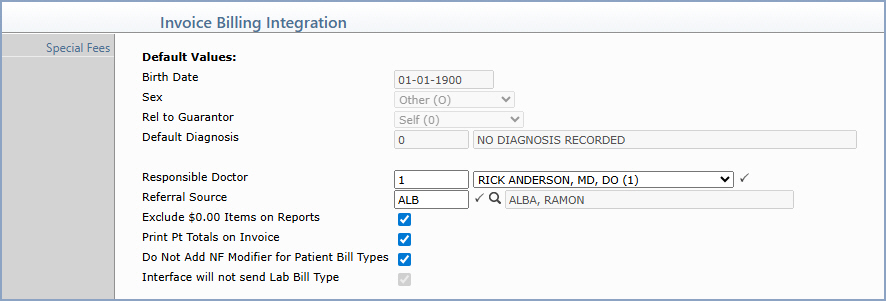
| Responsible Doctor | Type the doctor code or select the Responsible Doctor from the list. The doctor's name displays to the right of the selection. |  |
3 |
| Referral Source | Type the referral source code or click the magnifying glass to search for the code. The referral source name displays to the right of the field. | |
10 |
| Exclude $0.00 Items on Reports | Select this check box to control whether $0.00 transactions posted to patient accounts print on the Daily Register, Daily Register to Excel, Procedure Journal, and Transaction Journals to Excel – Procedures. | ||
| Print Pt Totals on Invoice | Select this check box to print a total of each patient's charges on the invoice. By default, this option is not selected. | ||
| Do Not Add NF Modifier for Patient Bill Types | Select this check box to suppress the addition of NF (No File) modifiers on charges when the Bill Type comes over in the interface as Patient. When NF modifiers are added to charges, any existing modifiers received from the interface are preserved and the NF modifier is added to the list. See Unposted Procedures for additional information. |
| Prompt | Response | Req | Len |
|---|---|---|---|
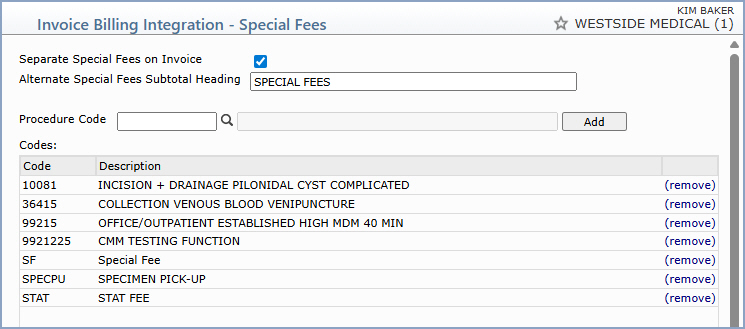
| Separate Special Fees on Invoice | Select this check box to activate the Special Fees functionality. The procedure codes in the Codes list below are separated into their own section when invoices are printed. | ||
| Alternate Special Fees Subtotal Heading | Type the heading you want to display on the invoice above the special fees subtotal. If left blank, the heading prints as Special Fees Subtotal. | 30 | |
| Procedure Code | Type the procedure code or click the magnifying glass to search the Procedure Code Table. Click Add to add the selected code to the Codes list. | 10 |
Copyright and Trademark Notice. Copyright © 2019 CompuGroup Medical, Inc. CGM®, CompuGroup Medical® and the CGM logo are registered trademarks and CGM webPRACTICE™ and CGM webTOOLS™ are trademarks of CompuGroup Medical AG in the United States and/or other countries. Any rights not expressly granted herein are reserved.
