
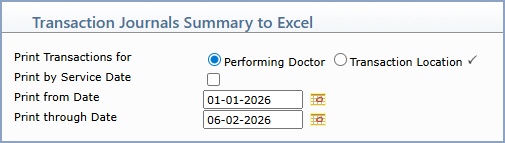
| Prompt | Response | Req | Len |
|---|---|---|---|
| Print Transactions for | Select Performing Doctor to group the summary by the performing doctor on each transaction, or select Transaction Location to group the summary by the location on each transaction. |  |
|
| Print by Service Date | If you want the report to gather data based on the date of service, select this check box. Leave blank to gather data based on the accounting date. | 1 | |
| Print from Date | Type the start date for the date range you want included on the report, or click the calendar icon to select a date. | 10 | |
| Print through Date | Type the end date for the date range you want included on the report, or click the calendar icon to select a date. | 10 |

| Prompt | Response | Req | Len |
|---|---|---|---|
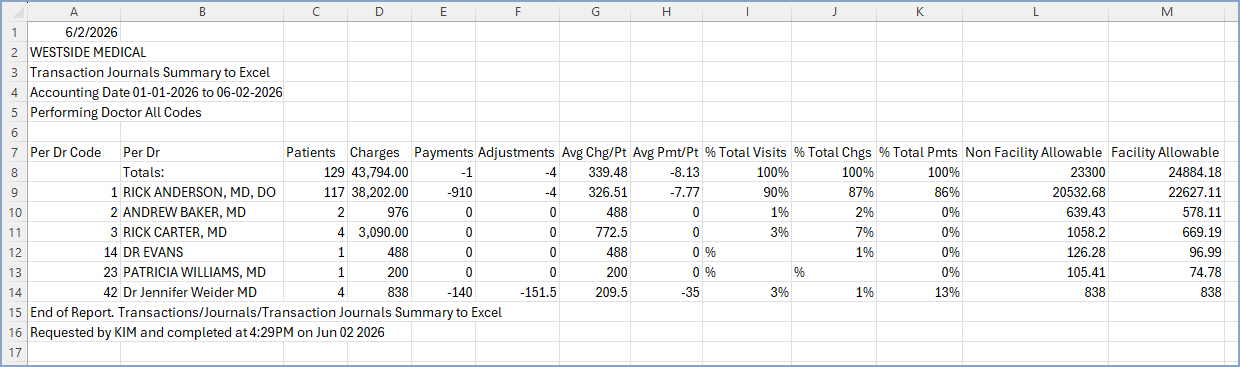
| Begin with Performing Doctor | Type the code you want to begin with, click the magnifying glass to search the table, or leave the field blank to start with the first code in the table. (When Transaction Location is selected on the lead-in screen, this field is labeled Begin with Transaction Location.) | ||
| End with Performing Doctor | Type the code you want to end with, click the magnifying glass to search the table, or leave the field blank to end with the last code in the table. (When Transaction Location is selected on the lead-in screen, this field is labeled End with Transaction Location.) |
Copyright and Trademark Notice. Copyright © 2019 CompuGroup Medical, Inc. CGM®, CompuGroup Medical® and the CGM logo are registered trademarks and CGM webPRACTICE™ and CGM webTOOLS™ are trademarks of CompuGroup Medical AG in the United States and/or other countries. Any rights not expressly granted herein are reserved.
