
| Prompt | Response | Req | Len |
|---|---|---|---|
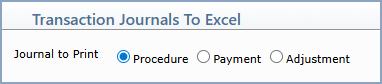
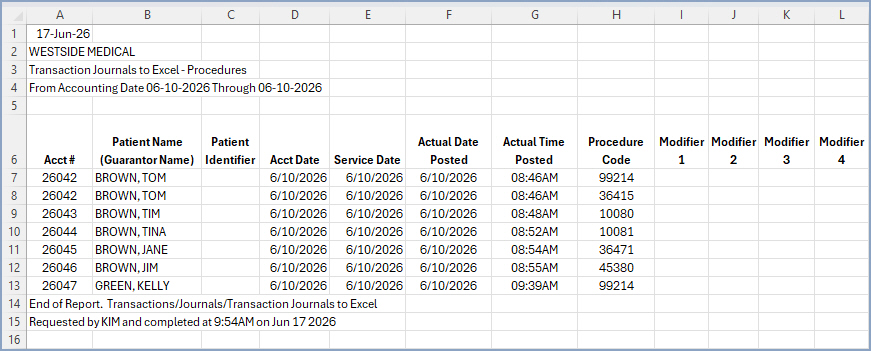
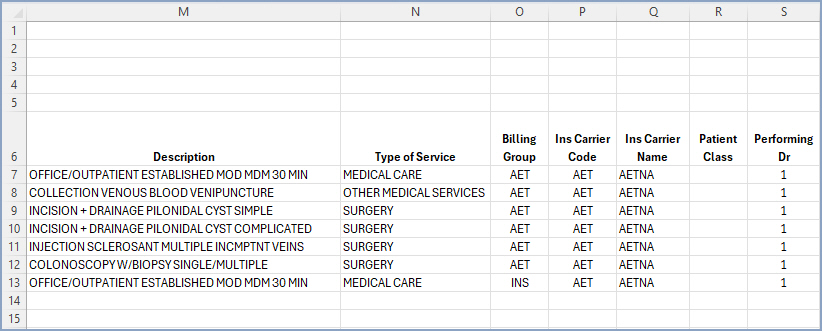
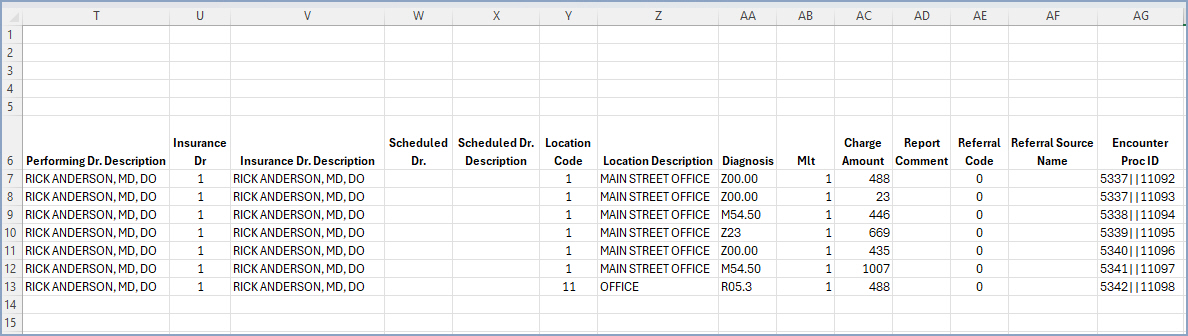
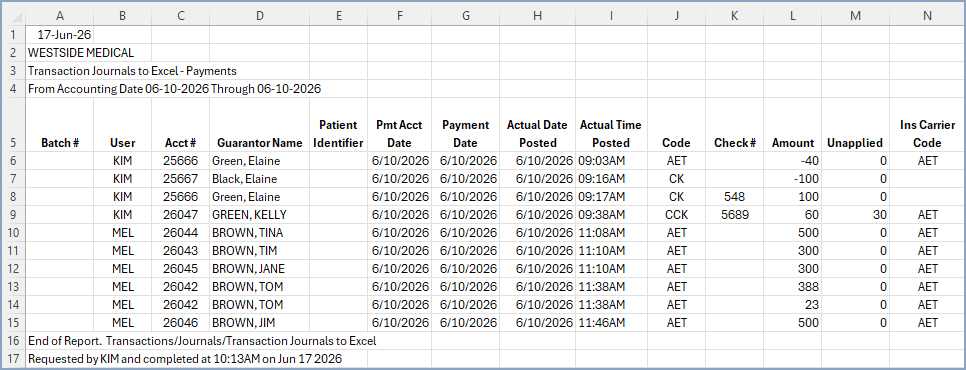
| Journal to Print | Select Procedure, Payment, or Adjustment to indicate which transaction type to include on the report. |
| Prompt | Response | Req | Len |
|---|---|---|---|
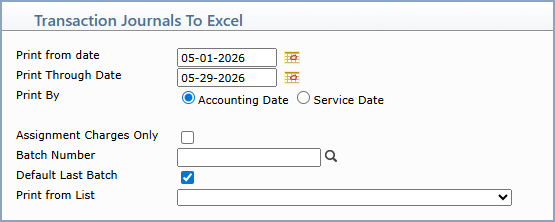
| Print from date | Type the date you want to start with or click the calendar icon to select a date. | 10 | |
| Print Through Date | Type the date you want the report to end with or click the calendar icon to select a date. | 10 | |
| Print By | Select Accounting Date to include transactions based on their accounting date, or select Service Date to include transactions based on their date of service. | ||
| Assignment Charges Only | If you only want to include charges that Assignment was accepted for, select this check box. | 1 | |
| Batch Number | Type the code you want or click the magnifying glass to search a list of every 'unlocked' batch. You can also create a new batch by typing in a batch number that does not exist and you will be asked if you want to create it. |
17 | |
| Default Last Batch | If you want the last batch number (used by the current user, in the current database, for the current date) to default, select this check box. If you select this check box while in any function in the system that contains a Batch Number field and then you access a different function that contains a Batch Number field, the Batch Number field will automatically default the last batch number used. |
||
| Print from List | If you want to print this report based only on the patients contained in a previously defined DMS List, select the list you want to use. | 20 |
| Prompt | Response | Req | Len |
|---|---|---|---|
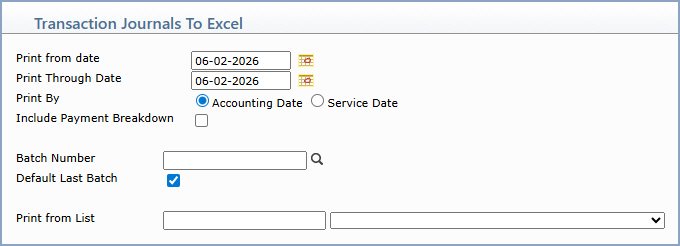
| Print from date | Type the date you want to start with or click the calendar icon to select a date. | 10 | |
| Print Through Date | Type the date you want the report to end with or click the calendar icon to select a date. | 10 | |
| Print By | Select Accounting Date to include transactions based on their accounting date, or select Service Date to include transactions based on their date of service. | ||
| Include Payment Breakdown | If you want the payments separated into two columns for Ins Pmts and Pt Pmts, select this check box. When selected, an Ins Carrier Type column is also included that indicates the carrier that made the insurance payment: P (primary), S (secondary), or T (tertiary). | 1 | |
| Batch Number | Type the code you want or click the magnifying glass to search a list of every 'unlocked' batch. You can also create a new batch by typing in a batch number that does not exist and you will be asked if you want to create it. |
17 | |
| Default Last Batch | If you want the last batch number (used by the current user, in the current database, for the current date) to default, select this check box. If you select this check box while in any function in the system that contains a Batch Number field and then you access a different function that contains a Batch Number field, the Batch Number field will automatically default the last batch number used. |
||
| Print from List | If you want to print this report based only on the patients contained in a previously defined DMS List, select the list you want to use. | 20 |
| Prompt | Response | Req | Len |
|---|---|---|---|
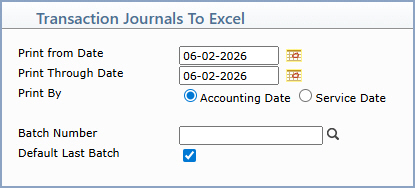
| Print from Date | Type the date you want to start with or click the calendar icon to select a date. | 10 | |
| Print Through Date | Type the date you want the report to end with or click the calendar icon to select a date. | 10 | |
| Print By | Select Accounting Date to include transactions based on their accounting date, or select Service Date to include transactions based on their date of service. | ||
| Batch Number | Type the code you want or click the magnifying glass to search a list of every 'unlocked' batch. You can also create a new batch by typing in a batch number that does not exist and you will be asked if you want to create it. |
17 | |
| Default Last Batch | If you want the last batch number (used by the current user, in the current database, for the current date) to default, select this check box. If you select this check box while in any function in the system that contains a Batch Number field and then you access a different function that contains a Batch Number field, the Batch Number field will automatically default the last batch number used. |
Copyright and Trademark Notice. Copyright © 2019 CompuGroup Medical, Inc. CGM®, CompuGroup Medical® and the CGM logo are registered trademarks and CGM webPRACTICE™ and CGM webTOOLS™ are trademarks of CompuGroup Medical AG in the United States and/or other countries. Any rights not expressly granted herein are reserved.
