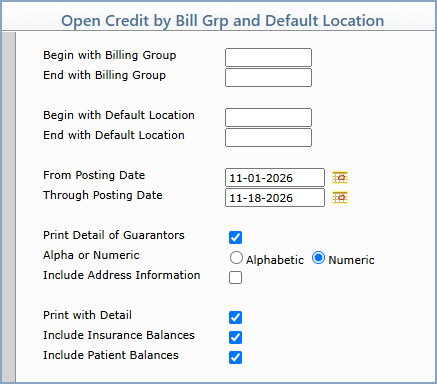
| Prompt | Response | Req | Len |
|---|---|---|---|
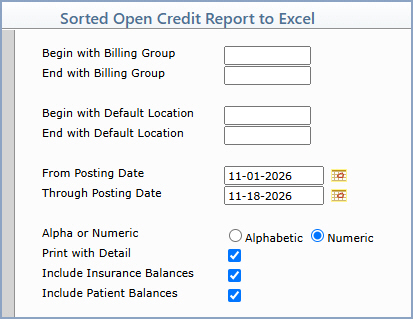
| Begin with Billing Group | Type the code you want to start with or leave the text box blank to start with the first code in the table. | 8 | |
| End with Billing Group | Type the code you want to end with or leave the text box blank to end with the last code in the table. | 8 | |
| Begin with Default Location | Type the code you want to start with or leave the text box blank to start with the first code in the table. | 8 | |
| End with Default Location | Type the code you want to end with or leave the text box blank to end with the last code in the table. | 8 | |
| From Posting Date | Type the first posting date to include on the report or click the calendar icon to select it. | 10 | |
| Through Posting Date | Type the last posting date to include on the report or click the calendar icon to select it. | 10 | |
| Print Detail of Guarantors | If you want to print the individual detail of the guarantors, select this check box. | 1 | |
| Alpha or Numeric | If you selected to print detail of guarantors - select the sorting option you want. | 1 | |
| Include Address Information | If you selected to print detail of guarantors and want to print the address information, select this check box. | 1 | |
| Print with Detail | If you selected to print detail of guarantors and want to print the transaction detail that caused the open credits, select this check box. | 1 | |
| Include Insurance Balances | If you want the report to list the insurance balance of the open credit, select this check box. If you also select to Include Patient Balances on the report, both balances will be combined and only one amount will print. | 1 | |
| Include Patient Balances | If you want the report to list the patient balance of the open credit, select this check box. If you also select to Include Insurance Balances on the report, both balances will be combined and only one amount will print. | 1 |
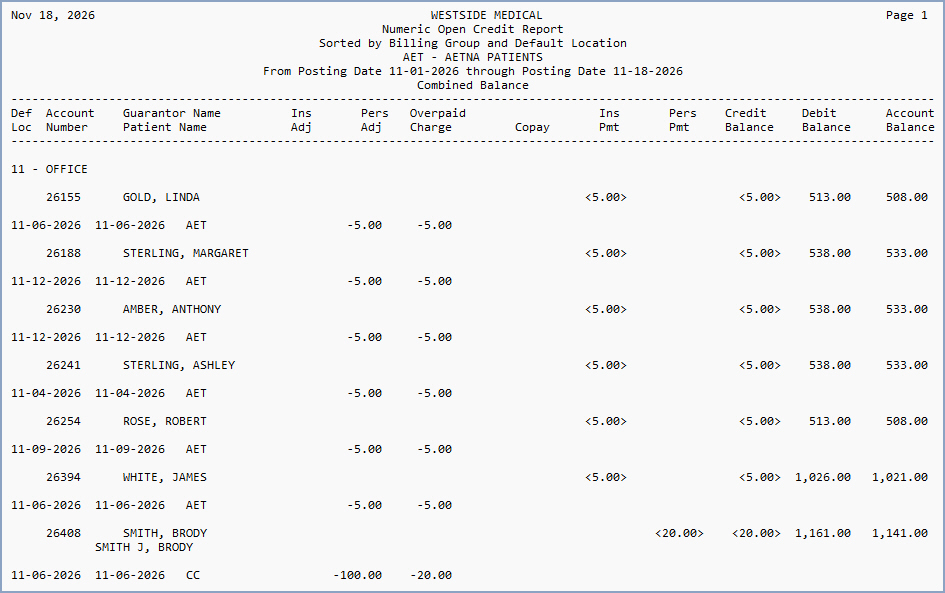
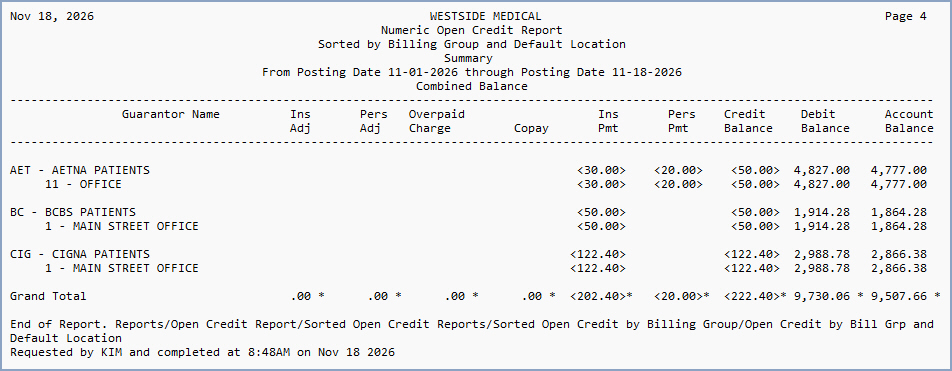
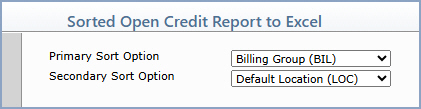
| Prompt | Response | Req | Len |
|---|---|---|---|
| Primary Sort Option | Select the first sort option you want to use for the report. | 5 | |
| Secondary Sort Option | Select the second sort option you want to use for the report. | 5 |
| Prompt | Response | Req | Len |
|---|---|---|---|
| Begin with [primary sort option] | Type the code you want to start with or leave the text box blank to start with the first code in the table. The prompt displays the primary sort option you selected on the previous screen. | 8 | |
| End with [primary sort option] | Type the code you want to end with or leave the text box blank to end with the last code in the table. The prompt displays the primary sort option you selected on the previous screen. | 8 | |
| Begin with [secondary sort option] | Type the code you want to start with or leave the text box blank to start with the first code in the table. The prompt displays the secondary sort option you selected on the previous screen. | 8 | |
| End with [secondary sort option] | Type the code you want to end with or leave the text box blank to end with the last code in the table. The prompt displays the secondary sort option you selected on the previous screen. | 8 | |
| From Posting Date | Type the first posting date to include on the report or click the calendar icon to select it. | 10 | |
| Through Posting Date | Type the last posting date to include on the report or click the calendar icon to select it. | 10 | |
| Alpha or Numeric | Select the sorting option you want. | 1 | |
| Print with Detail | If you want to include the transaction detail that caused the open credits, select this check box. | 1 | |
| Include Insurance Balances | If you want the report to list the insurance balance of the open credit, select this check box. If you also select to Include Patient Balances on the report, both balances will be combined and only one amount will print. | 1 | |
| Include Patient Balances | If you want the report to list the patient balance of the open credit, select this check box. If you also select to Include Insurance Balances on the report, both balances will be combined and only one amount will print. | 1 |
| Column | Heading |
|---|---|
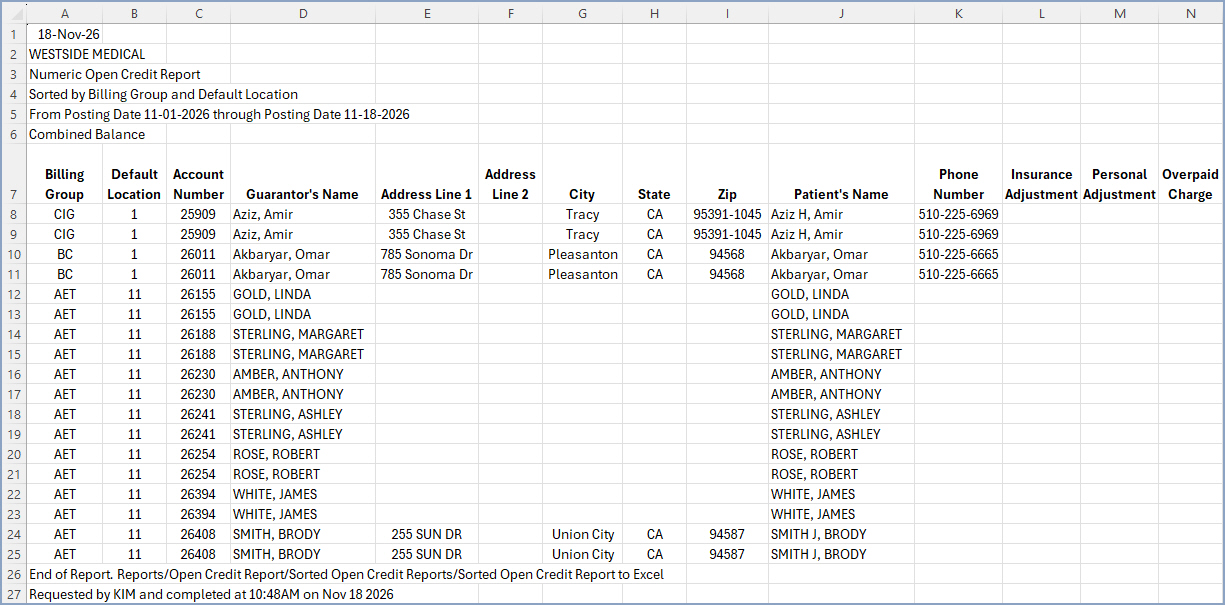
| A | Primary sort option selected (Billing Group in the example) |
| B | Secondary sort option selected (Default Location in the example) |
| C | Account Number |
| D | Guarantor's Name |
| E | Address Line 1 |
| F | Address Line 2 |
| G | City |
| H | State |
| I | Zip |
| J | Patient's Name |
| K | Phone Number |
| L | Insurance Adjustment |
| M | Personal Adjustment |
| N | Overpaid Charge |
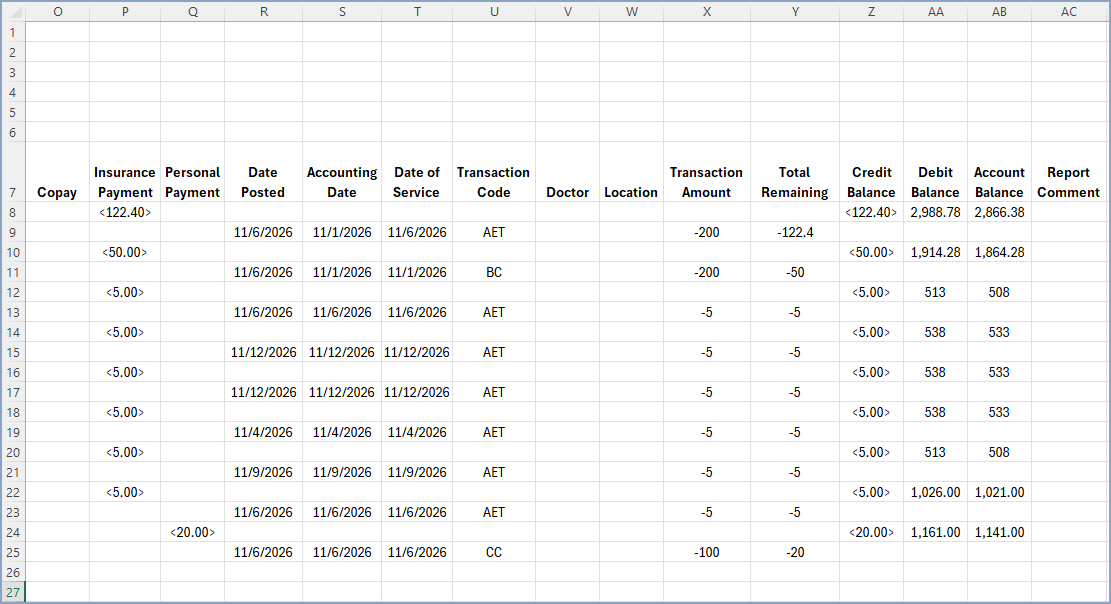
| O | Copay |
| P | Insurance Payment |
| Q | Personal Payment |
| R | Date Posted |
| S | Accounting Date |
| T | Date of Service |
| U | Transaction Code |
| V | Doctor |
| W | Location |
| X | Transaction Amount |
| Y | Total Remaining |
| Z | Credit Balance |
| AA | Debit Balance |
| AB | Account Balance |
| AC | Report Comment |
Copyright and Trademark Notice. Copyright © 2019 CompuGroup Medical, Inc. CGM®, CompuGroup Medical® and the CGM logo are registered trademarks and CGM webPRACTICE™ and CGM webTOOLS™ are trademarks of CompuGroup Medical AG in the United States and/or other countries. Any rights not expressly granted herein are reserved.