
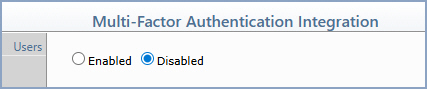
With the Multi-Factor Authentication Integration function, you can
enable or disable Multi-Factor Authentication (MFA) for your practice
and reset the MFA configuration for individual users when needed. MFA
acts as an additional layer of security to prevent unauthorized users
from accessing CGM webPRACTICE.
NOTE: MFA is automatically enabled and required for hosted clients.
Self-hosted clients have the option to enable or disable MFA from this
function.
Data Field Information
Prompt
Response
Req
Len
Enabled/Disabled
Select Enabled to turn on Multi-Factor
Authentication for all users in CGM webPRACTICE. Select Disabled
to turn it off. For hosted clients, MFA is automatically enabled
and this selection cannot be changed.
Action Column Functions
Users - Displays the list of user codes so you can reset the MFA
configuration for an individual user. Use this when a user gets a new
mobile device or when there is an issue with their existing MFA
configuration. After the reset, the user will be prompted to complete
the MFA setup steps the next time they log in.
User Setup
After MFA has been enabled, each user will need to complete the MFA setup
steps the first time they log in to CGM webPRACTICE. For detailed setup
instructions, see Multi-Factor
Authentication Instructions in the Introduction > System Processes
section of Help.
NOTE: All of the following actions are tracked in the System
Log:
Multi-Factor Authentication is enabled or disabled.
