Maintain ANSI CARC/RARC Codes

With the Maintain ANSI CARC/RARC Codes function you can review the standard ANSI Claim Adjustment Reason Codes (CARC) and Remittance Advice Remark Codes (RARC), map a Practice Denial Code to each code, and control how each code is handled when an ERA is posted. This table replaced the former Insurance Denial Code Table.

The codes, their descriptions, and the CARC/RARC designation are standard values that are supplied and updated periodically by CGM. The fields you maintain for each code are the Practice Denial Code and the Auto Adjustment (ERA), Auto Post $0 Payment (ERA), and Sequestration Code check boxes.

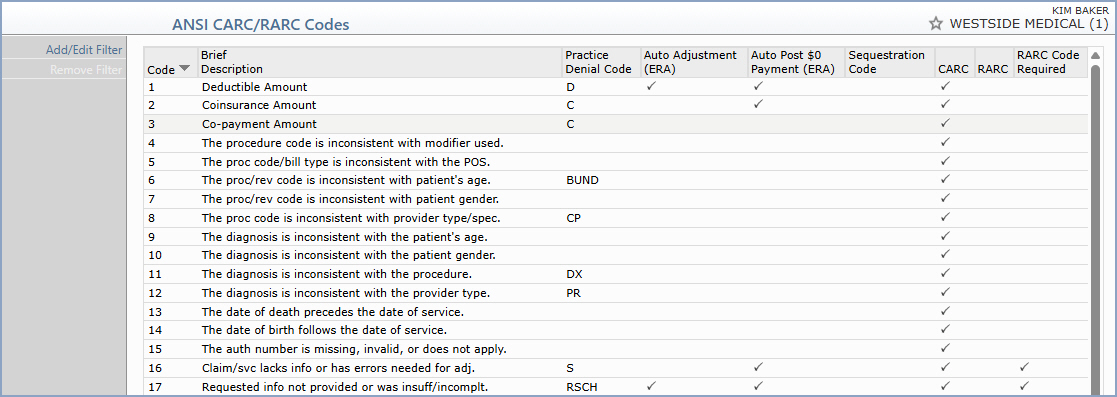
Upon accessing this function, the screen displays all of the codes in the table. You can click any column heading to resort the page as needed.


The columns on this screen are:
Column Description
Code The ANSI CARC or RARC code.
Brief Description A short description of the code.
Practice Denial Code The Practice Denial Code mapped to this ANSI code, if any.
Auto Adjustment (ERA) A checkmark indicates the denied amount for this code is automatically adjusted off when an ERA is posted.
Auto Post $0 Payment (ERA) A checkmark indicates a $0.00 payment is automatically posted for this code when an ERA is posted.
Sequestration Code A checkmark indicates the code is a sequestration code.
CARC A checkmark indicates the code is a Claim Adjustment Reason Code.
RARC A checkmark indicates the code is a Remittance Advice Remark Code.
RARC Code Required A checkmark indicates a Remark Code is required. This field is informational only and is maintained by CGM.

Action Column Functions
The Action Column functions are provided so you can perform multiple functions quickly and efficiently from within the Maintain function.

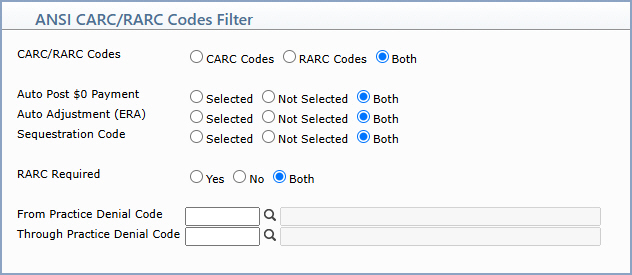
Add/Edit Filter - Opens the ANSI CARC/RARC Codes Filter screen so you can narrow the list to the codes you want.


Prompt Response Req Len
CARC/RARC Codes Select CARC Codes, RARC Codes, or Both to filter the list by code type.    
Auto Post $0 Payment Select Selected, Not Selected, or Both.    
Auto Adjustment (ERA) Select Selected, Not Selected, or Both.    
Sequestration Code Select Selected, Not Selected, or Both.    
RARC Required Select Yes, No, or Both.    
From Practice Denial Code Type the code you want to begin with, click the magnifying glass to search the table, or leave the field blank to start with the first code.   10
Through Practice Denial Code Type the code you want to end with, click the magnifying glass to search the table, or leave the field blank to end with the last code.   10

Remove Filter - Clears the active filter and returns the screen to the full list of codes.

Select - Displays a new screen with blank data fields so you can select another code.

New - Displays a new screen with blank data fields so you can enter the information for a new code.

Next - Displays the next code in the table. If you are viewing the last code in the table and click Next, CGM webPRACTICE returns to the main Tables menu. If you make changes to the table and click Next, the changes will not be saved. You must click Save to save the changes before proceeding to the next table item.

Previous - Displays the previous code in the table. If you are viewing the first code in the table and click Previous, CGM webPRACTICE returns to the main Tables menu. If you make changes to the table and click Previous, the changes will not be saved. You must click Save to save the changes before proceeding to the previous table item.

Print - You can print all or part of the contents of the table. For additional information on printing, see Print the ANSI CARC/RARC Table.

Inactivate - Immediately inactivates any active code currently displayed on the screen. When you inactivate a code in the table, it is not actually removed from the table but is assigned an inactive status. CGM webPRACTICE needs to retain information about the inactivated code for any data that was previously entered with that code. After a code has been inactivated you cannot use it for any data entry operation. An entry will be logged in the Changes to Table category in the System Log under System, File Maintenance, Look-Up Functions.

Reactivate - Immediately reactivates any inactive code currently displayed on the screen and allows it to be used in data entry again.

History - Displays the change history for the code currently displayed on the screen.

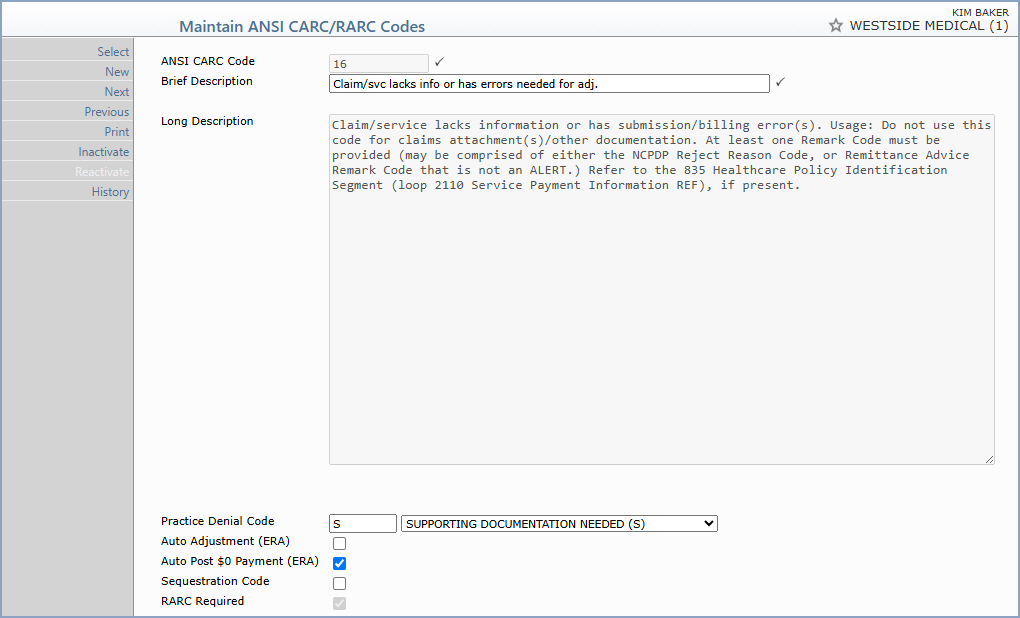
To add or edit the maintained fields for a code, click anywhere in the row for the code. The detailed information for that code displays, where you can review the system-supplied values and enter or change the Practice Denial Code and the ERA check boxes.


Data Field Information
Prompt Response Req Len
ANSI CARC Code Informational only. The standard ANSI code supplied by CGM. 10
Brief Description Informational only. A short description of the code, supplied by CGM. 50
Long Description Informational only. The full standard ANSI description of the code, supplied by CGM.   50 x 23
Practice Denial Code Type the Practice Denial Code you want to map to this ANSI code or select from the list. Practice Denial Codes are maintained in the Practice Denial Code Table.   5
Auto Adjustment (ERA) If you want the denied amount for this code to be automatically adjusted off when an ERA is posted, select this check box.   1
Auto Post $0 Payment (ERA) If you want a $0.00 payment to be automatically posted for this code when an ERA is posted, select this check box.   1
Sequestration Code Indicates the code is a sequestration code. When an ERA is posted, if a code has both the Sequestration Code and Auto Adjustment (ERA) check boxes selected, the denied amount is added to the total amount adjusted off for the claim.   1
RARC Required Informational only and maintained by CGM. As of February 2024, this field is reserved for future enhancements planned for Payment Entry.   1

After you Save the code, the information refreshes on the screen.

Use the Action Column functions to maintain codes. To edit existing codes in the table, a user must have the Allow Table Update check box selected in Maintain Users under System, User Management, and be given the appropriate security level. For additional information about security levels, see the Function Security Menu under System, User Management. For setting up user codes, see Maintain Users. If the user does not have the appropriate security level to access the Maintain function, codes can also be reviewed using the Review an ANSI CARC/RARC Code function.