Payment Entry Lead-in Screens

Upon accessing the Payment Entry Function, one or any combination of the following screens displays based on how your practice has selected to post payments:

Batch Number

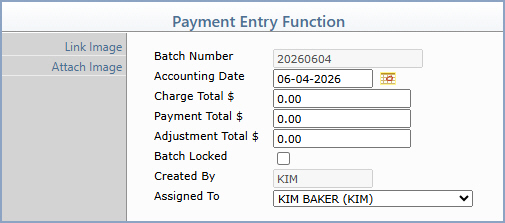
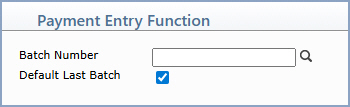
Upon accessing this function, if your practice has selected to use batch numbers for payments, a Payment Entry screen displays containing a blank field for the batch number. This screen displays if the Always or Sometimes batch option is selected in Transaction Batch Control.


Data Field Information
Prompt Response Req Len
Batch Number

Type the code you want or click the magnifying glass to search a list of every 'unlocked' batch. You can also create a new batch by typing in a batch number that does not exist and you will be asked if you want to create it.


If you select a batch that is locked, the message The Batch is Locked. To post transactions the Batch must be Unlocked. displays.
  17
Default Last Batch

If you want the last batch number (used by the current user, in the current database, for the current date) to default, select this check box.

 
If you select this check box while in any function in the system that contains a Batch Number field and then you access a different function that contains a Batch Number field, the Batch Number field will automatically default the last batch number used.
  1

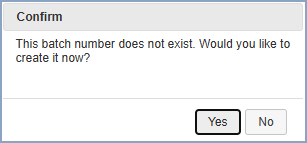
If you type a non-existing batch number, when you click Save, a message displays asking if you want to create a batch.


If you click Yes, the create a batch screen displays. For information on creating a batch, see Create a Batch.


NOTE: When you use a Batch Number to post a payment, the Accounting Date on the lead-in screen defaults to the Accounting Date stored on the batch.


Patient Look-up

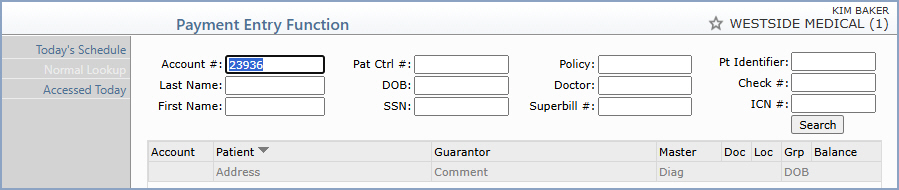
Next, select a patient account using the standard Patient Look-up function. For detailed information on using the Patient Look-up Action Column functions, see Patient Look-up. You can also click the New Patient Action Column function to register a new patient without having to exit this function. For detailed information, see Patient Registration.


Unposted Payments

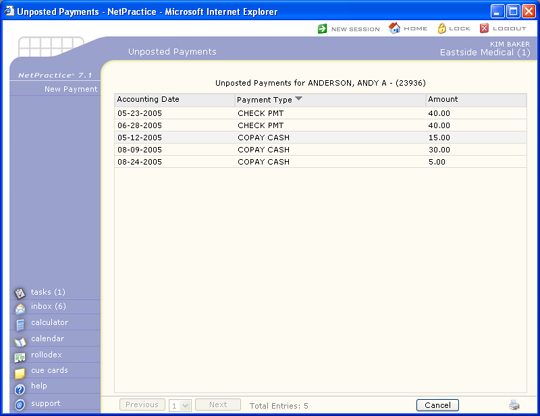
If the selected patient has any payments that were previously stored, the unposted payments screen displays all the stored payments for this patient.


You can either select the stored payments for a date listed or click New Payment in the Action Column to enter a new procedure. To select the stored payments for a date, click anywhere in the row containing the payment. All the information for the stored payments automatically populates into the payment entry screen. Since these payments are not yet posted, the accounting date is set to the date the payments were Stored. From here you can edit any fields, click Save to post the payments, click Cancel (which returns the payments to a stored status), or click Delete (which deletes the stored information). If you click Save, a message displays asking you to confirm the accounting date or select a different one. If you do not select any of the stored payments, they remain stored.

Payments entered within the Patient Check In/Out function are stored as unposted payments and included on the Unposted Payment Journal. If your practice is utilizing the Patient Check In/Out function in Scheduling, payments received over-the-counter can be entered using that function. For detailed instructions on entering over-the-counter payments, see the Patient Check In/Out section. It is possible for one patient to have multiple unposted payments.

Note: if you need to void an unposted payment, you must do so from within the Patient Check In/Out function.