| Prompt | Response | Req | Len |
|---|---|---|---|
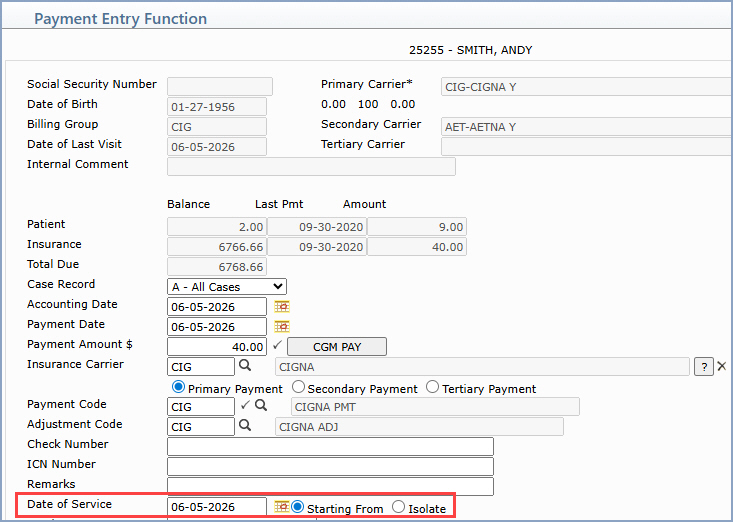
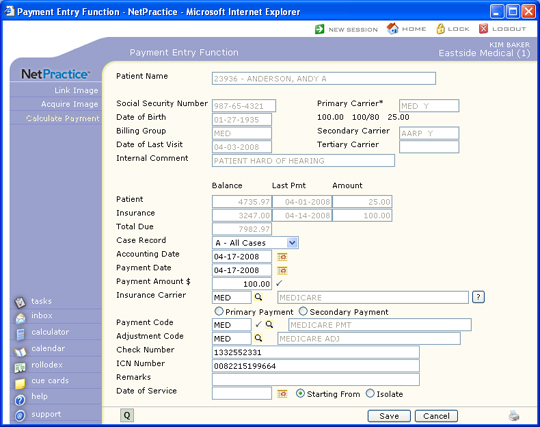
| Case Record | This field will only display if there are case records stored on the account. If this payment is applicable to a certain case, select the case for the payment from the Case Record list or select the 'A-All Cases' default. | 10 | |
| Accounting Date | Type the accounting date you want or click the calendar icon
to select a date. The accounting date determines which month's statistics will be affected by the payment. If you are using a batch, the date displayed will be the batch date and you will not be allowed to change it. If you are not using a batch, the date displayed will be the current date or the accounting date of the last payment entered and may be changed. If you accessed this function from the Procedure Entry Function, the date displayed will be the accounting date that was entered for the procedure(s). If you selected an unposted payment, the date displayed will be the current date. |
10 | |
| Payment Date | Type the payment date you want or click the calendar icon to
select a date. The Payment Date should be the actual date the payment was received and is the date that will print on the patients' statements. The default date displayed will be the date entered as the Accounting Date or the date of the last payment entered, which may also be changed if necessary. If you accessed this function from the Procedure Entry Function, the date displayed will be the last service date that was posted in the Procedure Entry Function. If you selected an Unposted Payment, the date displayed will be the date the unposted payment was originally stored, instead of the current date. |
10 | |
| Payment Amount $ | Type the payment amount. If you select an Unposted Payment, the amount displayed will be the amount originally stored on the unposted payment. | Y | 10 |
| Insurance Carrier | Type the code you want or click the magnifying glass to search
the table.
Click the question mark icon to display a list of the insurance carriers stored on the patient's account. 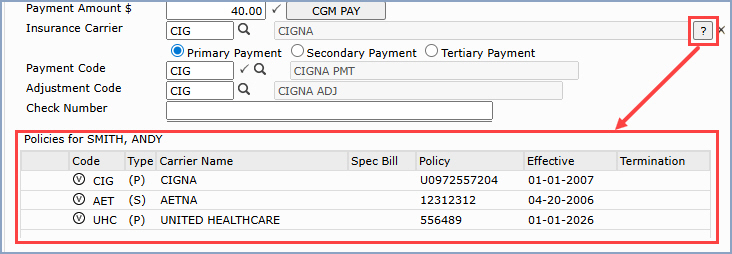 If a Case is entered on this payment and a primary insurance carrier is attached to that case, that insurance carrier will default. If you leave this field blank when posting insurance payments, CGM webPRACTICE will display a message requiring that you enter an insurance carrier. If you select the Primary Payment, Secondary Payment or Tertiary Payment option before entering an Insurance Carrier, the appropriate carrier will automatically be inserted into the Insurance Carrier field. If an Insurance Carrier has already been entered, selecting one of these options will not have any effect on the Insurance Carrier field. If the fields have already been populated and you need to make a change, you can click the 'X' icon to quickly clear the Insurance Carrier, Payment Code and Adjustment Code fields. If the payment or denial posted is from the patient's primary insurance carrier and there is a secondary carrier on the account, the claim will automatically be placed into the insurance submission file for the secondary carrier. The aging of these balances will also move from the primary to the secondary carrier. The same will occur for secondary carrier payments/denials and tertiary carriers. If there is not a subsequent carrier on the account, the remaining balance will move into the patient's responsibility. |
5 | |
| Payment Code | Type the code you want or click the magnifying glass to search
the table.
If you select a code for the Insurance Carrier field before typing a payment code, the Payment Code field will default with the Default Payment Code from the Insurance Carrier Table. |
Y | 5 |
| Adjustment Code | Type the code you want or click the magnifying glass to search
the table. This is required only if you are posting an adjustment
with this payment. If a default response is displayed it will be the adjustment code contained in the Payment Code Table. If an allowed amount exists in the fee schedule for this carrier for the procedure being paid and you are accepting assignment, the adjustment code entered at this prompt is the code that the write-off will be accumulated under. If an adjustment code is entered, but an allowed amount does not exist for the procedure being paid, the pointer will automatically stop at the Adjustment column of the Payment Entry screen allowing you to enter an adjustment amount. If an adjustment code is not entered, the Adjustment column will be skipped over and you will not be allowed to enter an adjustment with the payment. |
5 | |
| Check Number | Type the check number. It will default to the previously posted check number as long as you remain in Payment Entry. | 50 | |
| ICN Number | Type the ICN number. The ICN number is the insurance carrier's internal claim/control number and can generally be found on the Explanation of Benefits. Some insurance carriers may require this information to process secondary claims. | 50 | |
| Remarks | Type any applicable remark for this payment. Text typed in this field will overwrite the payment code description that displays in the patient's transaction history and will print on the patient's statement. |
40 | |
| Date of Service | If you want to limit the quantity of open items displayed on
the Payment Allocation screen, type the date of service you want
or click the calendar icon to select a date. If you typed a date of service, select either the Starting From or Isolate option, to indicate how you want the Payment Allocation detail screen displayed. The Starting From option displays all dates of service beginning with the date entered. The Isolate option displays only the date of service entered. You have the option to limit the quantity of open items displayed on the Payment Allocation screen. You can:
|
10 | |
| Invoice # | Type the invoice number you want or click the magnifying glass
to search the table. Note: This field is only effective for Invoice Billing systems. |

Copyright and Trademark Notice. Copyright © 2019 CompuGroup Medical, Inc. CGM®, CompuGroup Medical® and the CGM logo are registered trademarks and CGM webPRACTICE™ and CGM webTOOLS™ are trademarks of CompuGroup Medical AG in the United States and/or other countries. Any rights not expressly granted herein are reserved.