
If, in the Payment Entry Lead-in screen, you typed a payment code that
is assigned as an Insurance Payment, all payments posted with this code
are deducted from the insurance balance.
You can review how your payment codes are set up in Review
Payment Codes or edit them in Maintain
Payment Codes.
You do not have the option to apply payments on an oldest charge basis
if the payment code you selected is for an insurance payment.
To start allocating the insurance payment, you must click in the Allow (Allowed Amount) field of
the line item you want to pay. If the payment is an insurance payment
from the primary carrier and that carrier has a Fee Schedule, the allowed
amount contained in the Fee Schedule for the procedure selected will be
displayed, or the field will contain the full amount of the charge. If
the allowed amount is correct, you may accept the response by pressing
TAB, otherwise type the correct amount and press TAB.
You may also update the allowed amount in the Fee Schedule linked to the
primary carrier, by typing the correct amount immediately followed by
an "*".
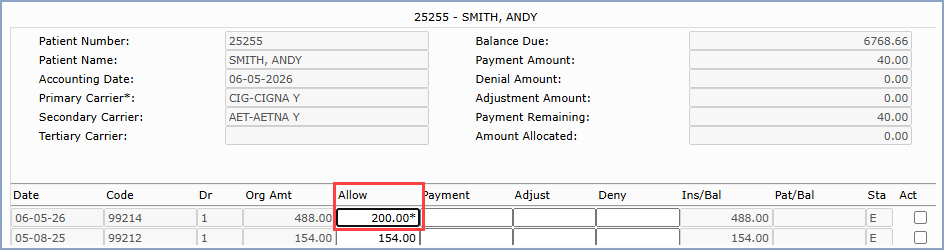
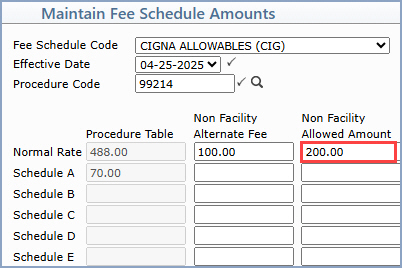
For example, the allowed amount first displayed 100.00 but you can type 200.00*. Doing so will immediately store the corrected allowed amount for that procedure in the appropriate Fee Schedule, even if you were to click Cancel and abandon payment entry. Press TAB to proceed with posting the payment.
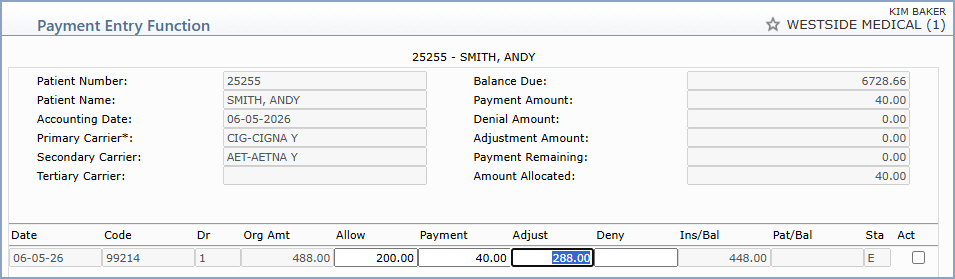
The pointer will move to the Payment field next. The default payment amount
takes into consideration the allowed amount and the amount stored in the
Insurance Liability field contained
in the patient's Insurance Information. Note:
Medicare payments for laboratory fees will default to 100 percent of the
allowed amount regardless of the insurance liability. You may press TAB
to accept the default amount displayed or type the correct payment amount
and press TAB.
After the payment amount has been accepted, the pointer will advance to
either the Adjust or Deny field. If an adjustment code was selected in
the payment entry screen, the pointer will move to the Adjust field, otherwise
it will move to the Deny field.
If you have a fee schedule tied to the patient's insurance carrier and
the procedure allowed amount is less than the original charge amount and
you are accepting assignment on the individual charge, a default amount
will be displayed in the Adjust field. This amount will be the difference
between the original charge and the allowed amount. You may press TAB
to accept the default amount displayed or type the correct adjustment
amount.
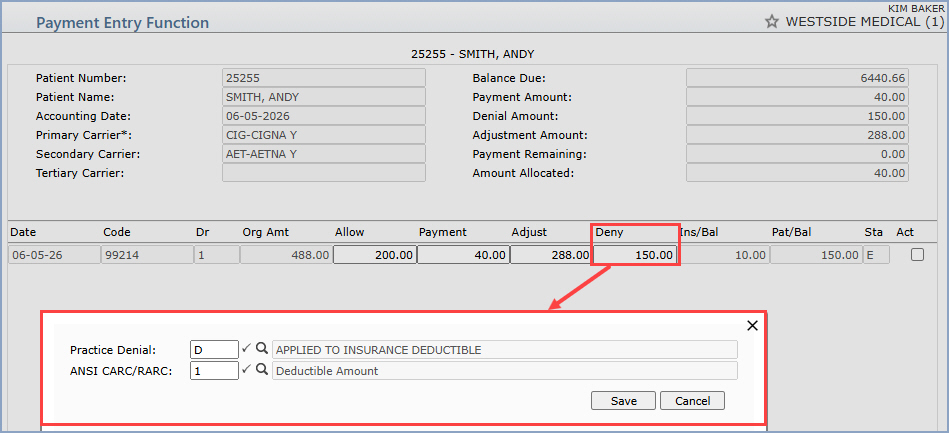
After the adjustment amount has been accepted, the pointer will advance to the Deny field. If an amount is entered in the Deny field, the Deny dialog box displays so you can select a practice denial reason from the Practice Denial Code Table and an ANSI CARC/RARC code from the ANSI CARC/RARC table. If you click Cancel, the amount in the Deny field clears so you can either type a new amount or move to the next line item.
If a denial is entered, the final display on this screen may look a little
peculiar and/or inaccurate. The display on this screen simply reacts to
the information that is entered with no consideration to what the actual
circumstances of the procedure may be (i.e., patient has primary and secondary
insurance and the primary denies the claim, this screen display will immediately
move the denial amount from the insurance balance column into the patient
balance column without accounting for the existence of the secondary insurance.
When the payment is actually saved, the system does all of the routine
checks to determine what the patient and insurance balances should be.
Only until this time can you be sure that the insurance and patient balances
are correct. Generally, if an insurance payment or denial is entered,
the balance on that line item will move from insurance liability to patient
responsibility. However, if the insurance payment is from the patient's
primary insurance carrier, or a denial was entered from the primary carrier,
and the patient has a secondary carrier, the balance on that line item
will be moved back to the insurance balance. If the liability entered
for the patient's secondary carrier is set to zero (See Patient
Change - Insurance), then the balance owing will remain in patient
responsibility.
There are times, however, where you might want to override the automatic
shift of balances. You may, for example, receive a partial payment from
the patient's primary insurance and not want a secondary claim generated
until you receive the entire payment. Or, you may want to force the balance
to the patient's responsibility for a line item even though they have
a secondary carrier. See Payment Actions
for instructions on shifting balances.
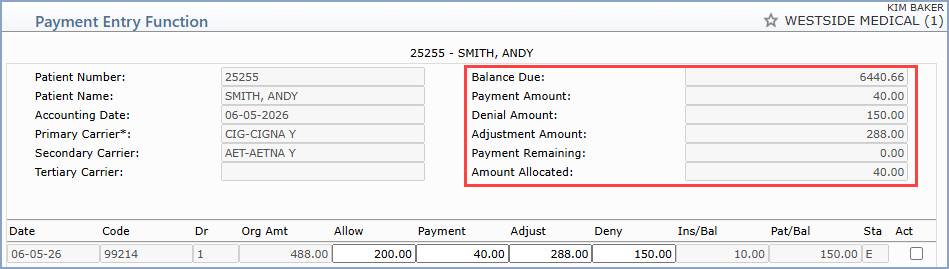
Each time an amount is entered on a transaction line, the appropriate totals
are immediately updated in the top section of the screen. For example,
the paid amount updates the balance due, payment remaining and amount
allocated. The adjust amount updates the balance due and adjustment amount
total and the deny amount updates the denial amount total.
The pointer will continue to drop down to the next transaction line until
the Payment Remaining field contains zero (0.00), or until you click Save.
If you do not allocate the entire payment entered, a message box will
pop up that informs you that you have left part or all of the payment
unallocated and asks Do you want to post this payment? You can
click Cancel if you do not want to leave part of this payment unallocated
and want to continue applying the payment, or you can click OK
to save this payment.
NOTE - Secondary claims sent electronically:
When the payment for the primary insurance carrier is posted, if the allowed
amount is not entered or is bypassed and entered with the same amount
as the billed amount, the program will automatically calculate the allowed
amount to be included on the secondary claim. This change should prevent
the secondary insurance carrier from overpaying the claim and compensate
for when the allowed amount is not entered correctly.
Copyright and Trademark Notice. Copyright © 2019 CompuGroup Medical, Inc. CGM®, CompuGroup Medical® and the CGM logo are registered trademarks and CGM webPRACTICE™ and CGM webTOOLS™ are trademarks of CompuGroup Medical AG in the United States and/or other countries. Any rights not expressly granted herein are reserved.
