
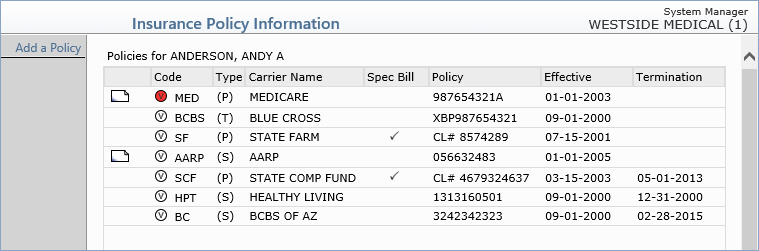
CGM webVERIFY Eligibility Status icons: (CGM webVERIFY clients only)
 Verification Failed - Red
 Verification Passed - Green
 Verification Outdated - Grey
 Verification Partial - Yellow
 Never Verified - Clear - denotes a policy that has never been verified.
If you point to the icon, a ScreenTip will state either, 'Never
Verified' or 'Never Verified.
Carrier does not contain a CGM webVERIFY Identifier.' You can click
the Status icon to check eligibility for the carrier
Never Verified - Clear - denotes a policy that has never been verified.
If you point to the icon, a ScreenTip will state either, 'Never
Verified' or 'Never Verified.
Carrier does not contain a CGM webVERIFY Identifier.' You can click
the Status icon to check eligibility for the carrier
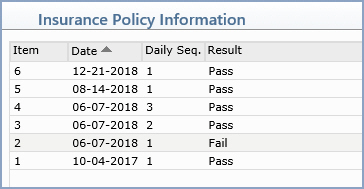
The status icon reflects the status of the specific result being viewed, not the current eligibility status for the policy.
| Prompt | Response | Req | Len |
|---|---|---|---|
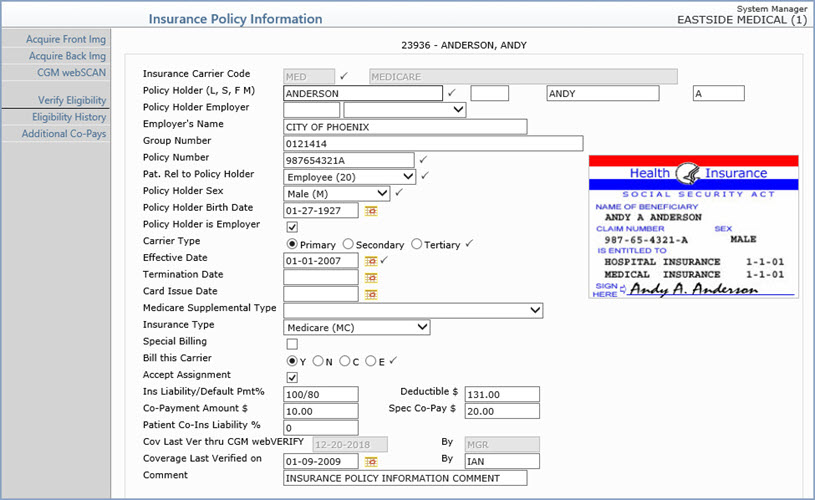
| Insurance Carrier Code | Type the code you want or click the
magnifying glass to search the table. NOTE: You cannot edit or delete this code if claims have been submitted to this carrier. You have to terminate this carrier instead. You cannot edit or delete this code if this carrier is tied to a case. You must remove the carrier from the case and as long as there are no claims submitted for this carrier, you can edit or delete the code. |
 |
5 |
| Policy Holder (L, S, F, M) | Type the policy holder's Last Name,
Suffix, First Name, and Middle Name in the corresponding boxes.
The Last Name is required. NOTE: If Same is selected for the Rel to Guarantor field on the Patient Name and Address Information screen, but the policy holder's name differs from the patient name, an alert message displays. |
|
60 |
| Policy Holder Employer | Type the employer code you want or select from the Employer list. This list pulls from the employer information stored in the patient's Employers DMS record. | 6 | |
| Employer's Name | If you do not have the Employers information completed on this account, you can still type the name of the employer or any additional employer information. | 40 | |
| Group Number | Type the group number for this policy. | 50 | |
| Policy Number | Type the patient's policy number for
this insurance carrier. If you selected the Default Policy with SSN check box in the Patient's Insurance Information section of the CGM webPRACTICE Default Values function and Rel to Guarantor = Self: the policy number defaults to the patient's SSN, otherwise the policy number defaults to the guarantor's SSN. If the Policy # Format field is completed in the Insurance Carrier table for this carrier, then the policy number entered here must match that format, otherwise an alert message displays. For more information, see Maintain Insurance Carriers. |
|
20 |
| Pat. Rel to Policy Holder | Select the patient's relation to the
policy holder. If 'Self' is selected, the policy holder's name, birth date and sex are automatically updated from the Patient Name and Address screen. If 'Child' is selected, the policy holder's name and birth date are automatically updated from the Guarantor's information, and the policy holder's Sex field is cleared out since the Guarantor's Sex is not stored in the system. |
|
2 |
| Policy Holder Sex | Select the option to indicate the policy holder's sex. | |
1 |
| Policy Holder Birth Date | Type the policy holder's birth date in the format of MM-DD-YYYY or click the calendar icon to select a date. | 10 | |
| Policy Holder is Employer | If the policy holder is the patient's
employer, select this check box. If you select this check box,
the policy holder's employer information will be sent in the electronic
insurance claim file instead of the policy holder's name. For
example, if the claim is for a worker's compensation case, the
employer is actually the policy holder and needs to be reported
on the claim. NOTE: If you select this check box, but Same is selected for the Rel to Guarantor field on the Patient Name and Address Information screen, an alert message displays. |
1 | |
| Carrier Type | Select the option to indicate the carrier
type for this policy.
If you attempt to change the Carrier Type when there are existing claims for that patient and carrier, that have a status of In Process, Locked, Exception or On Hold, you will receive the following message: Unable to change the carrier type. Claims have already been filed for this carrier. If there are claims that meet these criteria, you will not be allowed to change the carrier type.
In addition, if the insurance carrier is tied to a Case, you will not be allowed to change the carrier type. |
|
1 |
| Effective Date | Type the effective date of the policy or click the calendar icon to select a date. | |
10 |
| Termination Date | Type the termination date for this policy
or click the calendar icon to select a date. If you enter a termination date for this carrier, the account is checked to see if any charges were filed to this carrier after the termination date. If there were, a Deny dialog displays stating the open charges for the carrier will be denied and require you to select a Practice Denial code and an optional Insurance Denial code, to deny those charges. The charges that were filed to this carrier after the termination date will be denied, the patient's insurance ledger is updated to reflect 'D' for denied and the charges are moved to the patient balance. No secondary claim will be generated. If this policy is for a secondary insurance carrier and you want the policy information to still print on the insurance claim for the primary insurance carrier, type the same date in the Termination Date field that exists in the Effective Date field. If you do not want the secondary policy information to print on the insurance claim for the primary insurance carrier, you must make the termination date at least one day later than the effective date. |
10 | |
| Card Issue Date | Type the card issue date for the policy or click the calendar icon to select a date. If you practice has a current subscription to CGM webVERIFY, some payers require this date when processing eligibility requests. If the field is left blank, the Effective Date of the policy will be submitted instead. | 10 | |
| Medicare Supplemental Type | This field is required only if this policy is for an Electronic Secondary Medicare carrier. Select the type of policy from the Insurance Type Code list. This field is required by Medicare. If you do not select a type from the list, the claim is automatically sent with 12 - Working Aged Beneficiary or Spouse with Plan. | 2 | |
| Insurance Type | This field is required only if the policy is Medicare, Medicaid, or commercial Medicare. If this field is left blank when the policy is for a Medicare Carrier (Insurance Form 'C'), you will receive an electronic claims exception stating 'An Insurance Type is required if the policy is for a Medicare Carrier.' | 2 | |
| Special Billing | If this policy should only be billed for certain Cases, select this check box. | 1 | |
| Bill this Carrier | Select the billing option you want to
use for this policy when creating insurance claims. Y - Yes, create an insurance claim for all procedures that have accounting dates falling within the effective and termination dates for this policy and store entries for each procedure in the insurance ledger showing all activity. N - No, do not create an insurance claim for any procedures for this policy. C - Courtesy, create an insurance claim for all procedures that have accounting dates falling within the effective and termination dates for this policy but do not store any activity in the insurance ledger. E - Electronic, this option is for Medigap or Crossover secondary insurance carriers, when the primary carrier automatically forwards the insurance claim electronically to the secondary carrier. This option functions the same as selecting Yes, BUT AN ACTUAL INSURANCE CLAIM IS NOT CREATED IN EITHER THE ELECTRONIC OR PAPER CLAIM FILE. When a Secondary policy is added to a patient account, the Bill this Carrier option is automatically set to E, IF the secondary Insurance Carrier code has a Medigap number entered in the Insurance Carrier Table and ONLY IF the primary carrier on the patient's account is Medicare. Note: The Primary Insurance Default check box must be selected in System, Database Maintenance Menu, CGM webPRACTICE Default Values, otherwise this functionality will not work. |
|
1 |
| Accept Assignment | If you want to accept assignment for this carrier for this patient, select this check box. There are other fields within CGM webPRACTICE that can override this accept assignment setting. For additional information see the Accept Assignment Protocol help section under Introduction, System Processes. | 2 | |
| Ins Liability/Default Pmt % | Type the default insurance liability percentage followed by a forward slash '/' and then the default payment percentage. This field defaults with the value entered for the Liability/Default Pmt % field in the Insurance Carrier Table.
This is actually a two-part question. The first part - Ins Liability determines what portion of a procedure should go in the insurance balance. If the entire balance is to remain in the insurance balance until the insurance pays, then the response should be 100. If you are collecting a portion at the time of service, the entry should be the portion that will remain in insurance balance. For example: if you are collecting 20% up front, the liability should be 80. The second portion - Default Pmt % is what percentage the carrier actually pays. These two responses should be separated by a forward slash '/'. For example, if this carrier was Medicare, and you do not collect any money at the time of visit, your entry should be 100/80. This is the default response for all Medicare patients, thus maintaining consistency and eliminating errors. If you leave this field blank, the system treats it as if '100' was entered, which means the entire balance would remain in the insurance balance until the insurance pays. |
10 | |
| Deductible $ | Type the deductible amount for this policy. | 10 | |
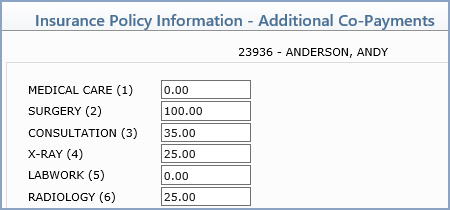
| Co-Payment Amount $ | Type the patient's co-payment amount for this policy, if applicable. This amount displays in the Copay field in the Insurance sections on the Patient Summary screen with the Specialist Co-pay amount in Co-Payment/Specialist Co-payment format. 20.00/35.00, for example. This amount also defaults in Patient Check In/Out, depending on the doctor the patient is scheduled with. Click Additional Co-Pays in the Action Column to add co-pay information for specific types of service. | 10 | |
| Spec Co-Pay $ | Type the patient's co-payment amount for specialists under this policy, if applicable. This amount displays in the Copay field in the Insurance sections on the Patient Summary screen with the standard Co-pay amount in Co-Payment/ Specialist Co-payment format. 20.00/35.00, for example. This amount also defaults in Patient Check In/Out, depending on the doctor the patient is scheduled with. Click Additional Co-Pays in the Action Column to add co-pay information for specific types of service. | 10 | |
| Patient Co-Ins Liability % | Type the patient co-insurance liability percentage. When the insurance policy is for a Medicare carrier that has the Insurance Form Type set to ‘C’, enter a value from 0 to 100. | 10 | |
| Cov Last Ver thru CGM webVERIFY | If your practice subscribes to CGM webVERIFY, the date this policy's coverage was last verified on will display. If not, type the date you last verified coverage or click the calendar icon to select a date. | 10 | |
| Coverage Verified thru CGM webVERIFY By | This field is informational only and reflects the user code of the person who last verified this policy - if your practice subscribes to CGM webVERIFY. | 10 | |
| Coverage Last Verified on | This field is for practices that do not subscribe to CGM webVERIFY and want to store a date to indicate when coverage was last verified with this carrier for this patient. Type the date or click the calendar icon to select a date. | 10 | |
| Coverage Last Verified By | This field is informational only is for practices that do not subscribe to CGM webVERIFY. It reflects the user code of the person who was logged in the last time a date was added or changed for the Coverage Last Verified on field. | 10 | |
| Comment | Type any applicable comment for this policy. This field is strictly informational and does not populate into any other function or print anywhere. | 40 |
Copyright and Trademark Notice. Copyright © 2019 CompuGroup Medical, Inc. CGM®, CompuGroup Medical® and the CGM logo are registered trademarks and CGM webPRACTICE™ and CGM webTOOLS™ are trademarks of CompuGroup Medical AG in the United States and/or other countries. Any rights not expressly granted herein are reserved.
