History
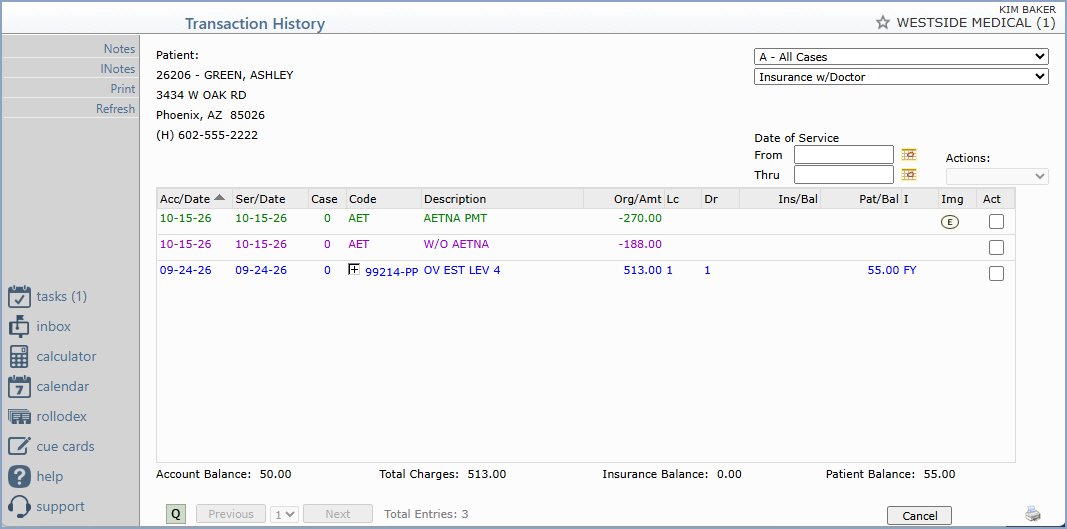
With the History function, you can review the patient's transaction
history without having to exit this function to access Review Patient
Information.
- You can customize the text color and font style for the various
types of transactions using the Configure
Colors function (System > Database Maintenance > Configure
Colors).
- If there are any DMS Notes stored on an account, two asterisks
(**) display following the patient's name. Click Notes in the
Action Column to review the DMS Notes.
- The patient's cell phone (C) and the guarantor's cell phone (C)
display to the right of the home phone (H) field, which displays below
the patient's address.
- To view the transactions for 'All Cases', or only those related
to a particular case, select the case option from the case list box
in the upper-right corner above the format list box. The case number
for each transaction is listed in the Case column in the transaction
history screen.
- If you hover over a transaction row and if there are any Notes
stored with the same accounting date, those notes will display. If
you hover over a transaction row and if there are any INOTES stored
with the same date of service, those notes will display.
- If you hover over the procedure code or procedure description,
the procedure code, brief description, and equivalent code (if one
exists) displays.
- The 'I' column contains a code (flag) for the insurance
filing status and a code for the accept assignment indicator. If you
hover over these codes, their description displays.
- Insurance Status Codes:
- B = Balance Transfer - This charge has been transferred from
the Insurance Balance to the Patient Balance with the Transfer
Insurance Balances function.
- C = Collection Status - If you use Patient
Collections, this indicates the transaction is in the collection
process.
- D = Denied - This procedure has been denied by one of the patient's
insurance carriers. The insurance ledger indicates the carrier, the
denial reason, and the amount denied.
- E = Electronically Filed - This procedure has been filed to the
patient's insurance carrier electronically.
- F = Filed - This procedure has been filed to the patient's primary
insurance carrier.
- H = Held - This procedure has been held from being billed to the
insurance company with a Claim Hold date entered in the Procedure
Entry Function.
- P = Pended - The insurance carrier has responded in some form,
but has not yet paid nor denied the claim.
- * = Refiled - This procedure has been refiled to one of the patient's
insurance carriers. The insurance ledger indicates which carrier.
- S = Secondary Filed - This procedure has been filed to the patient's
secondary insurance carrier.
- T = Tertiary Filed - This procedure has been filed to the patient's
tertiary insurance carrier.
- V = Void - This transaction has been voided.
- Assignment Status:
- Y = Yes - Assignment was accepted on this procedure.
- N = No - Assignment was not accepted on this procedure.
- You can view the saved image for any transaction by clicking the image
icon in the Img column and the image displays in a new browser
window. The various types of images that can be viewed in Transaction
History are:
- Patient Collection Letters - you must use DMS letters and have
the Adj Code for Letters field completed in the Patient
Collections Integration function.
- Electronic Patient Collection Letters - If you use CGM
ECOLLECTIONS to send your patient collection letters electronically.
- Insurance Collection Letters - you must use DMS letters and have
the Adj Code for Letters field completed in the Insurance
Collections Integration function.
- Electronic Patient Statements - you must send electronic patient
statements and have the Adj Code for Stmts field completed
in the CGM
webPRACTICE Default Values function.
- Electronic Superbills - if you hover over the superbill image
icon (sb), the superbill number and any superbill notes display. In
Family Billing databases, the superbill image icon is removed from
the charge line items on family member accounts; you can only view
the E-Superbill image (sb) for a family member account from the
master account.
- Explanations of Benefits - if a payment already has an EOB image
scanned and attached to it, the scanned image will override the auto-generated
version. The auto-generated EOBs also print insurance denials and
denial descriptions when you manually post a $0 payment to apply a
denial to a charge.
NOTE: The 'Act' (Actions) column at the far right of the screen
can only be accessed in the History function in Change Patient Data.
The Account Balance, Total Charges, Insurance Balance, and Patient
Balance are listed across the bottom of the screen.
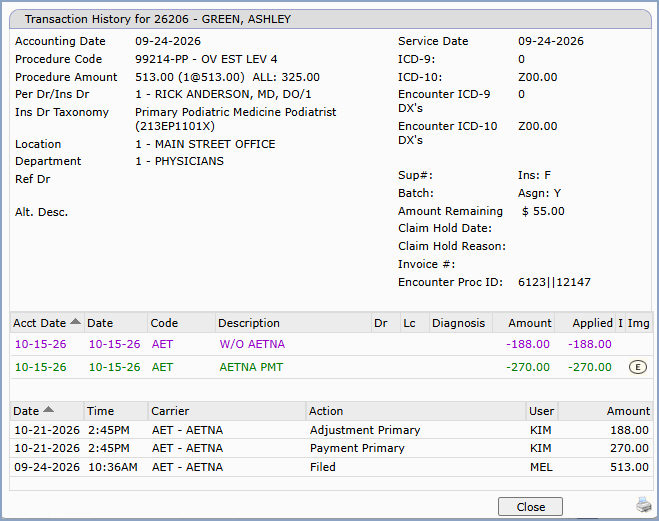
You can view the detail of any transaction by selecting it. To select
a transaction, click anywhere in the row containing the transaction information.
The transaction detail displays in a new window. When you have finished
reviewing the detail, click Close and the Transaction History screen
re-displays.
- Transaction History Detail for Charges: The top section
of this screen includes: the accounting date; date of service; procedure
code and description; the ICD-9 and ICD-10 diagnosis code(s) as well
as any encounter-level ICD-9 and ICD-10 diagnosis codes (if you hover
over a diagnosis code, the description of the diagnosis displays);
the procedure amount and the (# of units @ that amount); the amount
allowed by the insurance company, if an insurance payment was posted;
the performing provider's code and name/the insurance doctor's code
and taxonomy; the location code and description; the department code
and description; the service script date (if one was entered); the
referring doctor's code and name; the date of illness/injury (if one
was entered); the superbill number; the insurance flag code; the alternate
description if you entered anything in the Remarks field when
posting a payment or an adjustment; the batch number; the accept assignment
indicator; the edited field reflects what you entered in the Editing
Reason field if you edited the transaction; the amount remaining
(balance due) on this transaction; the Claim Hold date and, directly
below it, the Claim Hold Reason (if the claim has a hold); the invoice
number (this field only applies if Invoice Billing is activated for
your database); and the Encounter Proc ID, a unique identifier representing
the posted procedure code. You can click on the image icon next to
View Superbill to view the electronic superbill, (if your practice
uses them and if one is attached to the charge).
The middle section displays all of the payments and adjustments posted
to the charge with the accounting date; the payment or adjustment
code and description; the performing provider code; the location code;
the diagnosis code; the amount of the total payment or adjustment;
the amount of the payment or adjustment applied to this specific transaction;
the insurance flag code; and the image icon, if there is an image
attached to that payment. If you hover over the row(s) containing
the payment or adjustment information and if there are Notes stored
on the account with the same accounting date, those notes will display.
You can view the detail of the payment or adjustment transaction by
clicking anywhere in the row containing the transaction information.
The bottom section of the screen displays the insurance ledger showing
payments, adjustments, filings, refilings, denials, and any Hold or
Exception activity of the transaction/claim with the date that
the activity took place (not the accounting date, payment date
or date of service); the time the activity took place and the user
who performed it; the insurance carrier code and name; the action
taken on the transaction and the amount of the action; the denial
reason and the amount denied, if the claim was denied; and the Patient
Control Number (Pat Ctrl #), which displays once the claim has been
sent or printed.
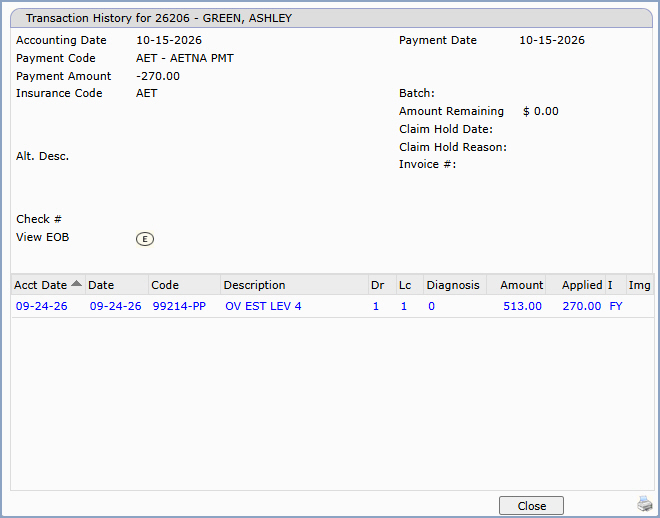
- Transaction History Detail for Payments: The top
section of this screen includes: the accounting date; payment date;
payment code and description; the payment amount; the insurance carrier
code; the alternate description if you entered anything in the Remarks
field when posting the payment or if the payment was reversed, the
Reversal Reason will display; the batch number, the amount
remaining (balance due) on this transaction; the Claim Hold date and
Claim Hold Reason (if the claim has a hold); the invoice number (this
field only applies if Invoice Billing is activated for your database);
and the check number. If there is an EOB attached to this payment
there is a View EOB field and you can click on the image icon
next to it to view the explanation of benefits. When viewing Statement
Sent adjustment codes, the Statement Sent Date and Statement File
name fields display above the View Statement field.
The bottom section of this screen includes the accounting date, date
of service; the procedure code and description; the performing provider
code; the location code; the diagnosis code; the charge amount; the
amount of the payment applied to this specific transaction; the insurance
flag code and accept assignment indicator; and the image icon, if
there is an image attached to the transaction. If you hover over the
doctor code, the location code, or the insurance flag, the description
of these codes will display.
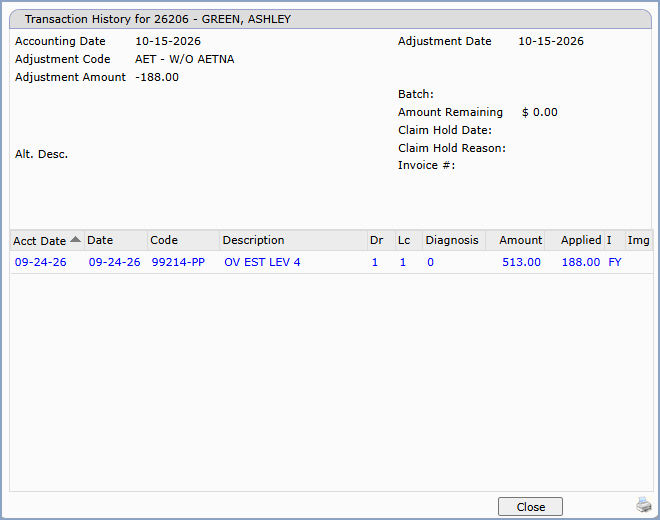
- Transaction History Detail for Adjustments: The top
section of this screen includes: the accounting date; adjustment date;
adjustment code and description; the adjustment amount; the alternate
description if you entered anything in the Remarks field when
posting the adjustment or if the adjustment was reversed, the Reversal
Reason will display; the batch number; the amount remaining (balance
due) on this transaction; the Claim Hold date and Claim Hold Reason
(if the claim has a hold); and the invoice number (this field only
applies if Invoice Billing is activated for your database).
The bottom section includes the accounting date, date of service; the
procedure code and description; the performing provider code; the
location code, the diagnosis code, the charge amount; and the amount
of the payments and adjustments applied to that charge; the insurance
flag and accept assignment indicator; and the image icon, if there
is an image attached to the transaction. If you hover over the doctor
code, the location code, or the insurance flag, the description of
these codes will display.
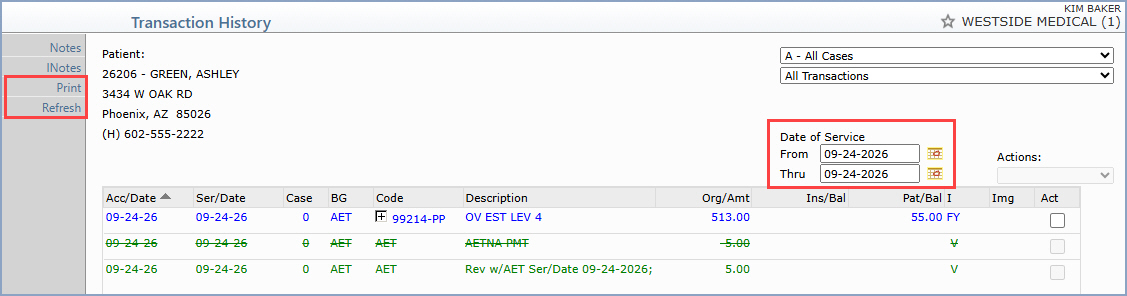
Date of Service Look-up Function - With this function, you can
review specific transactions for a selected date or date range. For example,
the account may contain multiple transactions for the month of May, but
you want to focus only on the charges posted for May 29th, and any payments
or adjustments allocated to those charges. To select a date, type the
date of service in the From and Thru fields or click the
calendar icon to select a date in the upper-right section of the transaction
history window. Click Refresh in the Action Column to display the
transactions for the selected date(s). The account totals listed across
the bottom of the screen are for the selected date(s) only. Click Print
in the Action Column to print the transaction history for the selected
date(s).
Transaction History Screen Formats - You can view the Transaction
History screen in a variety of formats. Select the format you want from
the format list box located in the upper-right corner under the case list
box. The view you select stays selected until you exit back to the Patient
menu.
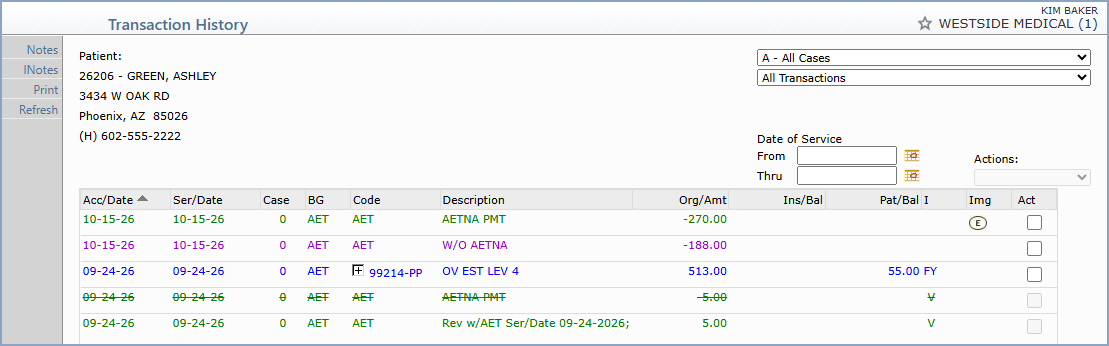
- All Transactions - All transactions are displayed, including
any reversed or voided transactions. The accounting date, service
date, case code, billing group code, transaction code and description,
original amount of the transaction, insurance balance, patient balance,
insurance flag, accept assignment indicator, and any image icon for
each transaction are displayed. Reversed and negated transactions
display with a strikethrough on the original transaction(s), and the
reversed or negated transaction(s) contain a more detailed description.
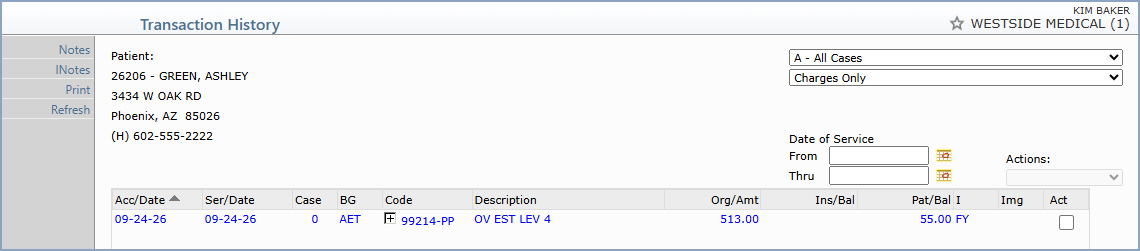
- Charges only - Only the charges on the account are displayed.
The accounting date, service date, case code, billing group code,
procedure code and description, original amount of the charge, insurance
balance, patient balance, insurance flag, accept assignment indicator,
and any image icon for each transaction are displayed.
- Encounter - Transaction history grouped by encounter by
accounting date is displayed. Encounters within the same accounting
date are separated further by performing provider and location. Each
encounter header displays the encounter number and accounting date,
the case, the status, the billing group, and the ICD-9 and ICD-10
diagnosis code(s) for the encounter. The charge line items display
the service date, code, description, $ Charge (the original charge
amount), $ Ins Bal, $ Pat Bal, $ Tot Bal (the total current balance
for each charge), and Ins Img columns. A Totals row displays the totals
for the encounter and a Last Saved line shows when the encounter was
last saved and by whom. Click the DOWN ARROW next to the encounter
name to access the actions available for that encounter (see Encounter
Actions below).
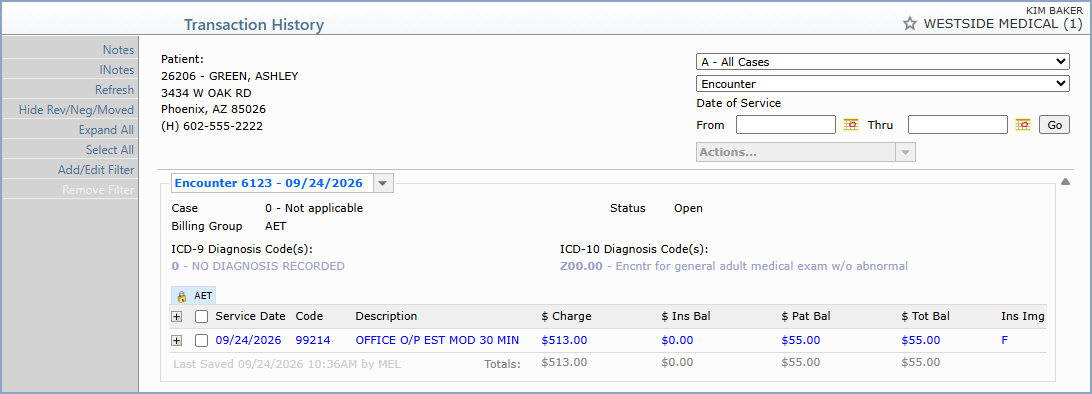
- Encounter View Action Column Buttons:
- Notes - Opens the patient notes window.
- INotes - Opens the insurance notes window.
- Refresh - Refreshes the encounter list to reflect any
changes.
- Show/Hide Rev/Neg/Moved - This toggle button shows/hides
any reversed, negated, or moved transactions in the display. The
preferred view can be set in the Miscellaneous section
of the CGM
webPRACTICE Default Values function. The toggle button defaults
to the view as selected in the default values. The Show/Hide view
as currently selected on the screen will hold until you click
Cancel to cancel all the way out of the function.
- Expand All/Collapse All - Toggle button. Expands or
Collapses every encounter currently displayed. You can select whether
you want this to always display as expanded upon entering the function
in the Miscellaneous section of the CGM
webPRACTICE Default Values function.
- Select All/Clear All - Toggle button. Selects all encounters
or line items currently displayed; click again to Clear All. Use
caution with the Select All side of the toggle when followed by
an Edit Selected action.
- Add/Edit Filter - Opens the filter screen so you can
narrow the list to specific transactions. When you are viewing filtered
results, the words ***Filtered View*** display in red at the
top of the screen.
- Remove Filter - Clears the active filter and returns
the screen to the full transaction list.
- Encounter Actions: Click the DOWN ARROW next to the encounter
name to access the actions that may be performed on the entire encounter:
- Billing Group - Changes the Billing Group tied to the
encounter.
- Reverse - Reverses the transaction(s) in the encounter.
If the claim has already been sent or the billing period is closed,
this action is unavailable because you may not reverse the charge;
you must negate instead.
- Negate - Backs out the charge(s) in the encounter. The
Negate Reason field is required and displays in the Alt. Desc. field
for the transactions that were negated.
- Deny - Records an insurance denial on the charge(s) in
the encounter. This action is only available when there is an insurance
balance.
- Refile - Refiles the charge(s) to the insurance carrier.
- Demand - Files the charge(s) to insurance on demand.
- File - Files the charge(s) to the insurance carrier.
- Pend - Holds the charge(s) so they continue to show on
insurance aging reports until further action is taken.
- Unpend - Reverses a Pend.
- Clone - Makes a copy of the encounter so you can post
the same charges with only a few modifications and save it as a new
encounter. When you clone an encounter, you can change the Batch
Number and Accounting Date.
- Actions that are not applicable for the encounter appear unavailable
for selection (grayed out) in the drop-down list. When an action is unavailable,
the reason it is unavailable is shown in parentheses next to the action;
for example, Refile (No Claims Sent). To perform an action on
a specific charge line item, click the encounter to enter the Edit
an Encounter function and select the individual action to take on
the line item.
- Selecting Multiple Encounters or Charges: Check boxes display
to the left of the Service Date column header and to the left of each
charge line item so you can select an individual box, multiple boxes,
or all boxes (click Select All to select all). When you have selected
the appropriate boxes, the Actions drop-down under the Date of
Service From and Thru boxes becomes active. Click it and select File
Selected, Refile Selected, or Edit Selected:
- File Selected - The standard File dialog displays so
you can select the insurance carrier to file the encounter(s) or
charge(s) to. A message displays indicating that the items were filed
successfully. If any of the line items or encounters could not be
filed, a dialog box appears listing them; you must then file those
separately to obtain the reason that they cannot be mass-filed. If
there is a claim hold in place, a message displays stating that the
claim has a Claim Hold and it will not be submitted until the Claim
Hold is removed.
- Refile Selected - The standard Refile dialog displays
so you can select the parameters for the encounter(s) or charge(s)
that you want to refile. A message displays indicating that the items
were refiled successfully. If any of the line items or encounters
could not be refiled, a dialog box appears listing them; you must
then refile those separately to obtain the reason that they cannot
be mass-refiled. The Claim Hold message also applies when refiling.
- Edit Selected - If you select one encounter only, the
standard Edit
an Encounter screen opens. If you select multiple encounters,
the Edit Encounters dialog opens so you can edit the encounter-level
information for the selected encounters; the Edit Reason field is
required. The Edit Selected option is not available for individual
charges or for multiple charges within the same encounter (or across
multiple encounters); to edit those, click the encounter to access
the Edit an Encounter screen.
- Claim Tabs: You can view the 5010 claim for a particular encounter
by clicking the appropriate claim tab. If there are multiple claims associated
with the encounter, you will see multiple tabs; one corresponding to
each claim. Point your mouse to a claim tab to view information about
the claim. The lower-left corner of the Encounter View provides a color
legend to easily identify primary, secondary, and tertiary+ claims. These
are not active buttons; they are a color legend to use as a guide for
quickly identifying the type of claim.
- The word Negative displays in front of a negative insurance
payment or insurance adjustment in Encounter view; if a Remark was entered
when the payment or adjustment was posted, that description displays
instead of the word Negative.
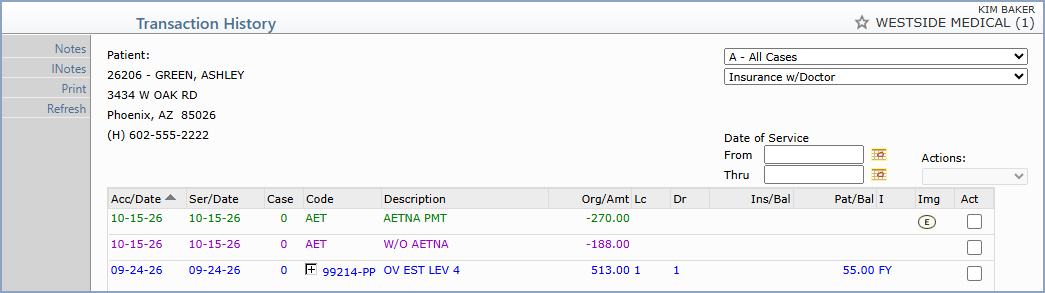
- Insurance w/Doctor - All transactions (except those that
have been reversed or voided) are displayed. The location code and
doctor code are displayed in addition to the accounting date, service
date, case code, transaction code and description, original amount
of the charge, insurance balance, patient balance, insurance flag,
accept assignment indicator, and any image icon for each transaction
are displayed.
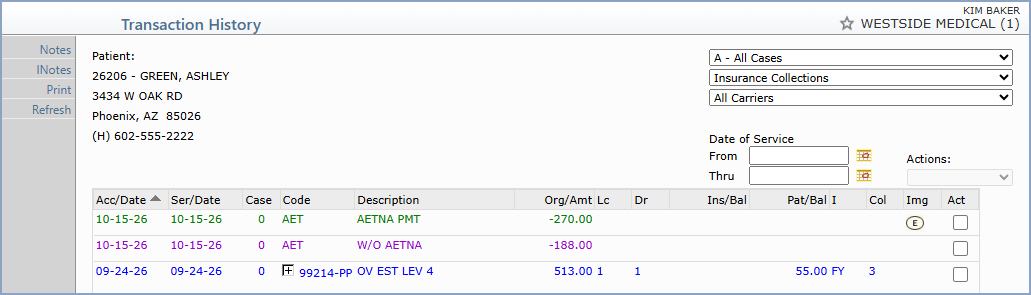
- Insurance Collections - All charges that are currently in
an insurance collections status are displayed. You can select claims
for a specific insurance carrier or 'All Carriers' in the insurance
carrier list box to the right of the account demographic information.
If you select a specific carrier, the details of the patient's policy
with that carrier are displayed in the top-middle portion of the screen.
The accounting date, service date, case code, procedure code and description,
original amount of the charge, location code, doctor code, insurance
balance, patient balance, insurance flag, accept assignment indicator,
insurance collection status code and any image icon for each transaction
are displayed.
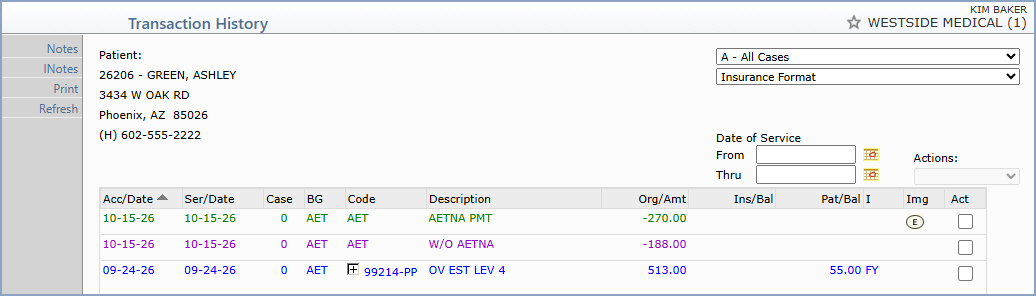
- Insurance Format - All charges, payments and adjustments
(except those that have been reversed or voided) are displayed in
the insurance format. The accounting date, service date, case code,
billing group code, transaction code and description, original amount
of the transaction, insurance balance, patient balance, insurance
flag, accept assignment indicator, and any image icon for each transaction
are displayed.
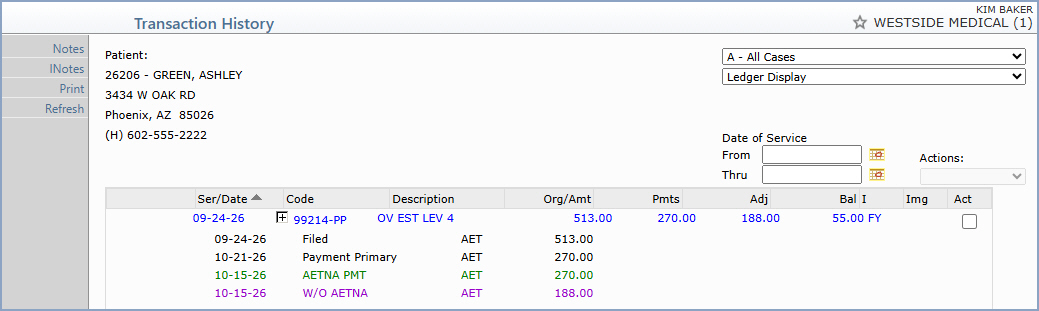
- Ledger Display - All charges, payments and adjustments (except
those that have been reversed or voided) are displayed in a ledger
format. This format displays the service date, transaction code and
description, original amount of the transaction, the total payment
and adjustment amounts applied to each transaction, the balance on
each transaction, insurance flag, and the accept assignment indicator.
The insurance ledger and transaction detail are also displayed below
each transaction.
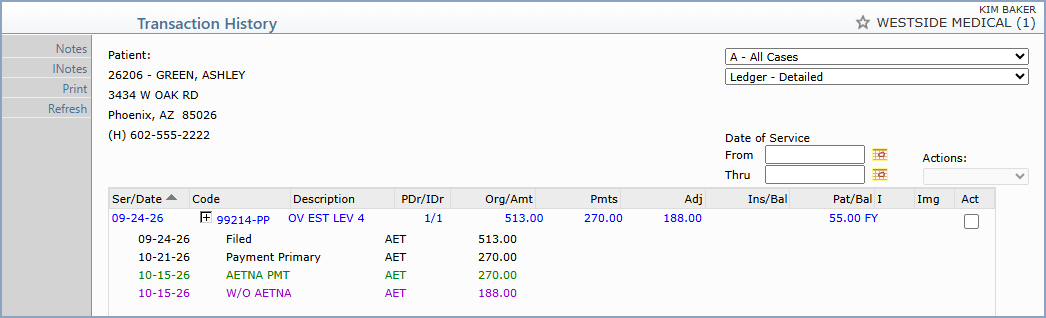
- Ledger - Detailed - All charges, payments and adjustments
(except those that have been reversed or voided) are displayed in
a detailed ledger format. This format displays the same information
as the standard Ledger Display, but in addition, the performing (PDr)
and insurance (IDr) doctor codes are displayed for each charge immediately
following the charge description and the balance is broken down into
two columns for the insurance balance and patient balance.
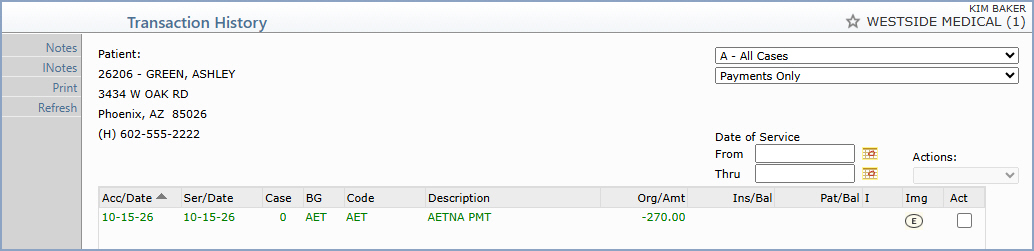
- Payments only - Only the payments on the account are displayed.
The accounting date, service date, case code, billing group code,
transaction code and description, original amount of the payment,
any unapplied portion of the payment in the insurance or patient balance,
and any image icon for each payment are displayed.
Action Column Functions
- Notes - Click Notes to review the Note DMS
Records on the account.
- INotes - Click INotes to review the Insurance Notes
on the account.
- Print - Click Print to print the transaction history
on the account for a specified range of accounting dates.
- Refresh - Click Refresh to refresh/update the screen.
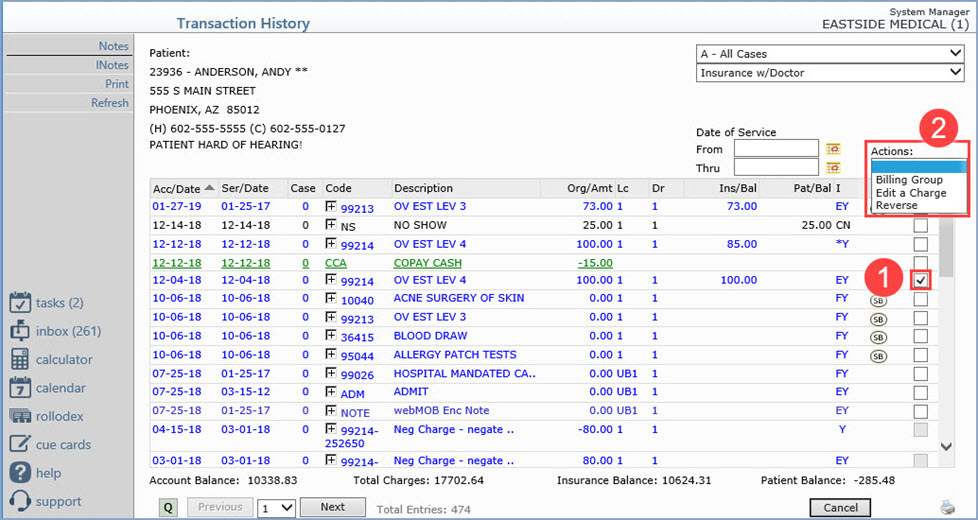
Actions The 'Act' (Actions) column on the transaction history
screen is only available in Change Patient Data. It is not accessible
in Review Patient Information. To use this functionality, select
the check box(es) next to the transaction(s) you want to change (1), then
select an action from the Actions list (2). If you try to access
these functions without having the required security level, a warning
message displays and you will not be able to continue with the action.
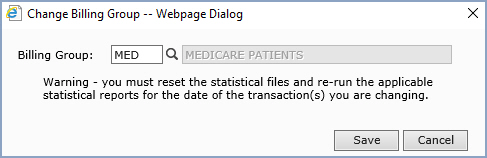
- Billing Group: If you want to change the Billing Group tied
to the transaction, select this action. If the Billing Period for
this date of service has been closed, a message displays to inform
you that you must re-open the closed billing period before changing
the Billing Group. The Change Billing Group dialog also displays a
warning reminding you to reset the statistical files and re-run the
applicable statistical reports for the date of the transaction(s)
you are changing. Type the Billing Group code you want or click the
magnifying glass to search the table.
- Edit a Charge: You can only edit charge transactions
from this screen. When you select Edit a Charge, the standard
Edit an
Encounter screen displays.
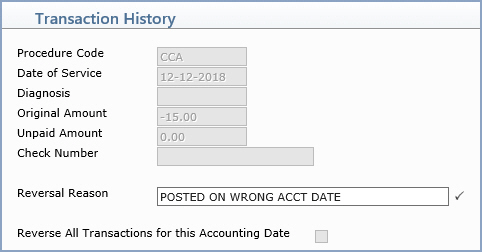
- Reverse: You may only reverse payments or adjustments using
this function. When you select Reverse, a dialog displays the
procedure code, date of service, diagnosis, original amount, unpaid
amount, and check number for the selected transaction. The Reversal
Reason field is required. If you want to reverse all transactions
posted for the same accounting date, select the Reverse All Transactions
for this Accounting Date check box.